Wi-Fi
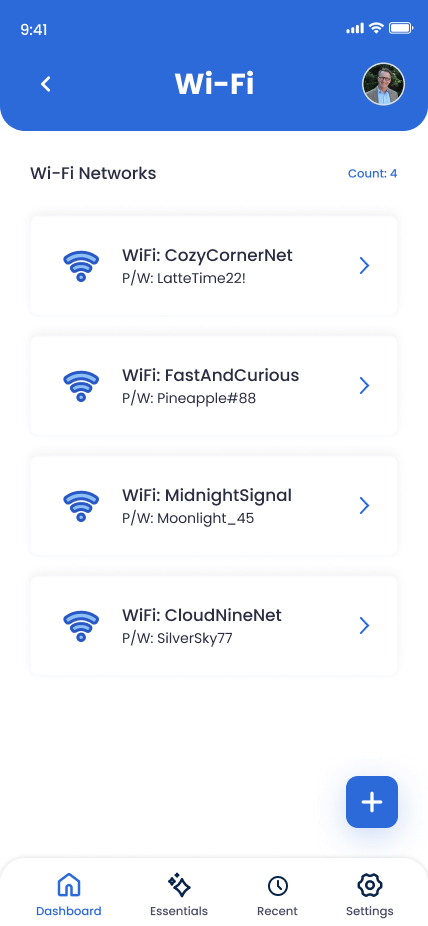
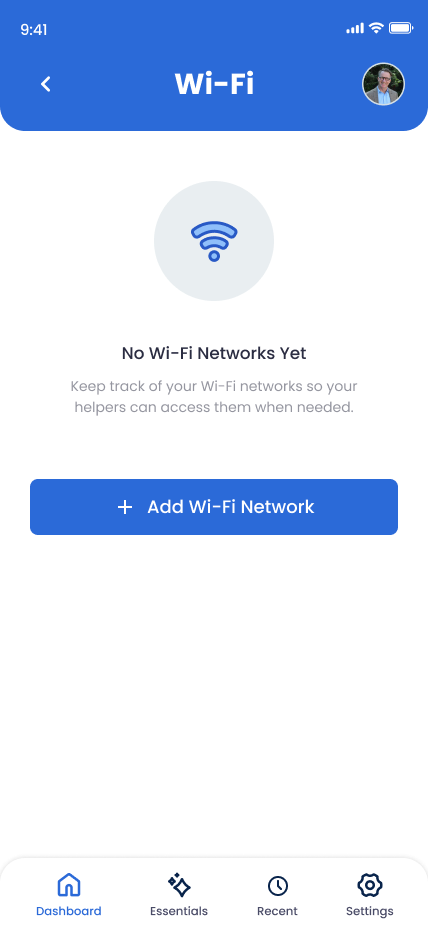
WiFi credentials, router admin access, ISP account, and VPN settings — everything your family needs to keep the internet running, change service, or troubleshoot if something goes wrong.
What You Can Store
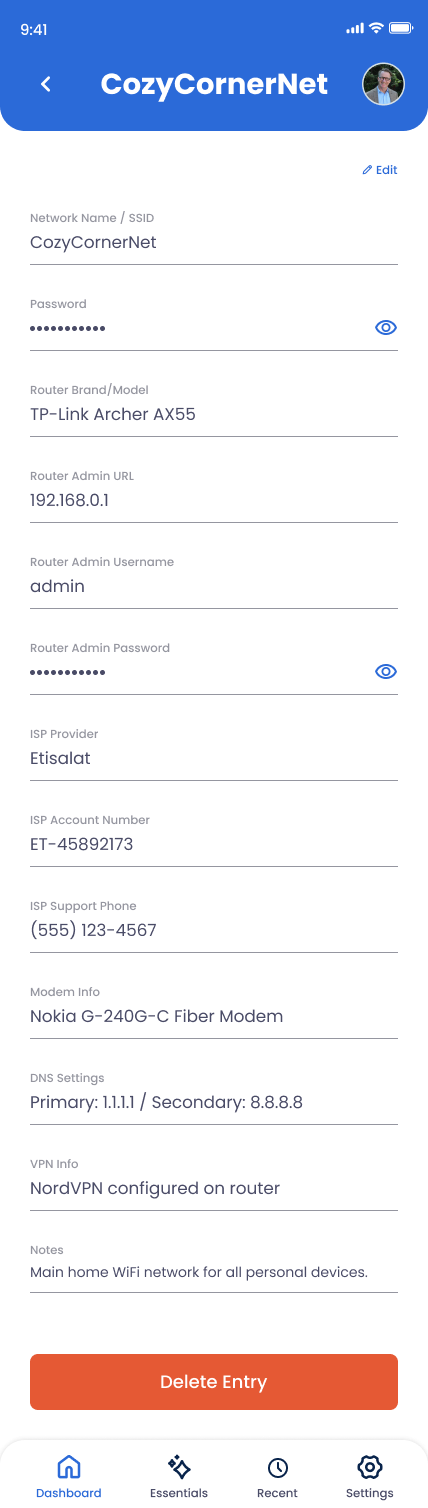
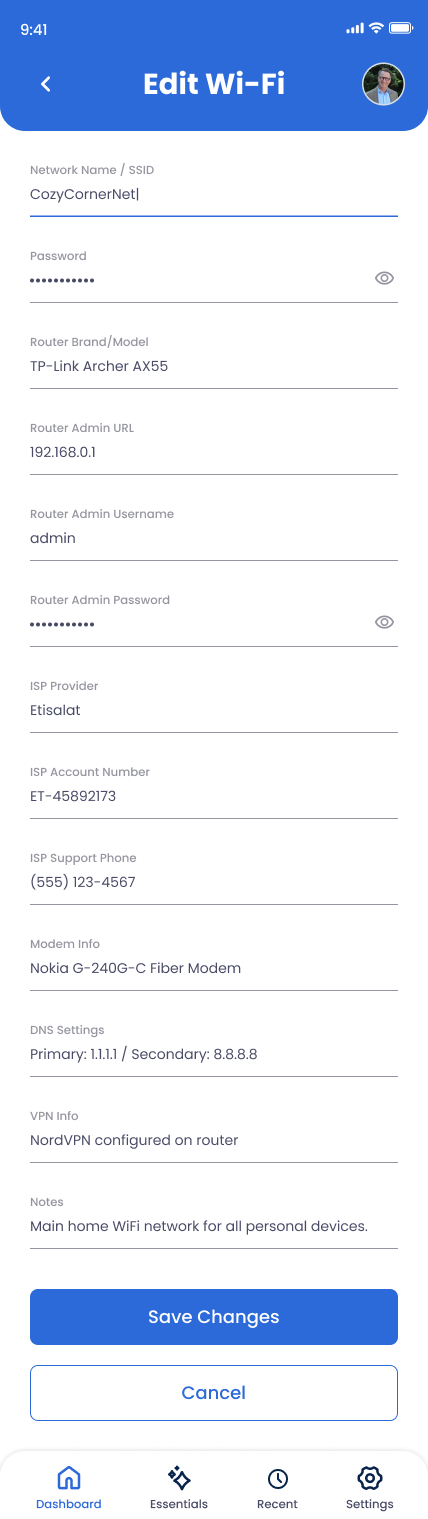
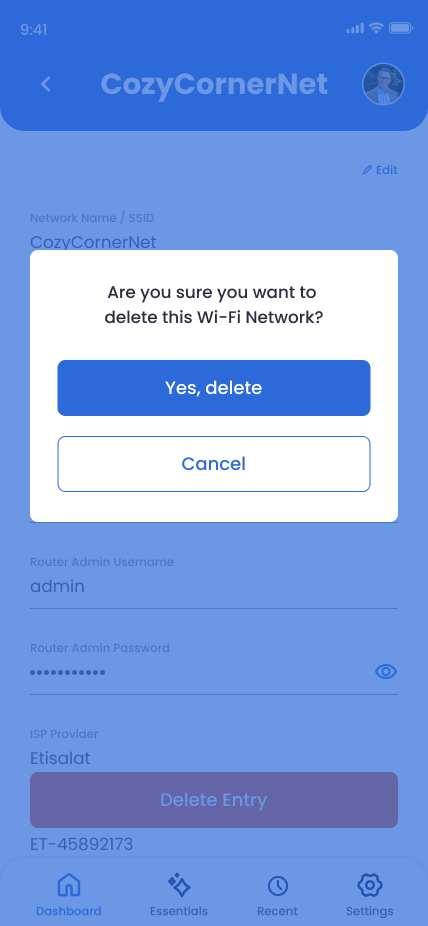
Network Name (SSID)
The WiFi network name you connect to.
Password
The WiFi password.
Router Brand / Model
"eero Pro 6E," "Netgear Nighthawk RAX120," etc.
Router Admin URL
Often 192.168.1.1 or 192.168.0.1, or a vendor app.
Router Admin Username
Often "admin" or your email tied to the vendor app.
Router Admin Password
The password for the admin/setup interface.
ISP Provider
Verizon Fios, Comcast, Spectrum, etc.
ISP Account Number
The account number on file with your provider.
ISP Support Phone
Direct line to call when something breaks.
Modem Info
Brand/model and whether it's owned or leased — so your family knows what to return.
DNS Settings
Custom DNS like 1.1.1.1 or NextDNS, if you've set it.
VPN Info
Provider name, account email, server preference, and where the config files are.
Notes
Guest network details, port forwards, mesh node placement, anything else worth remembering.
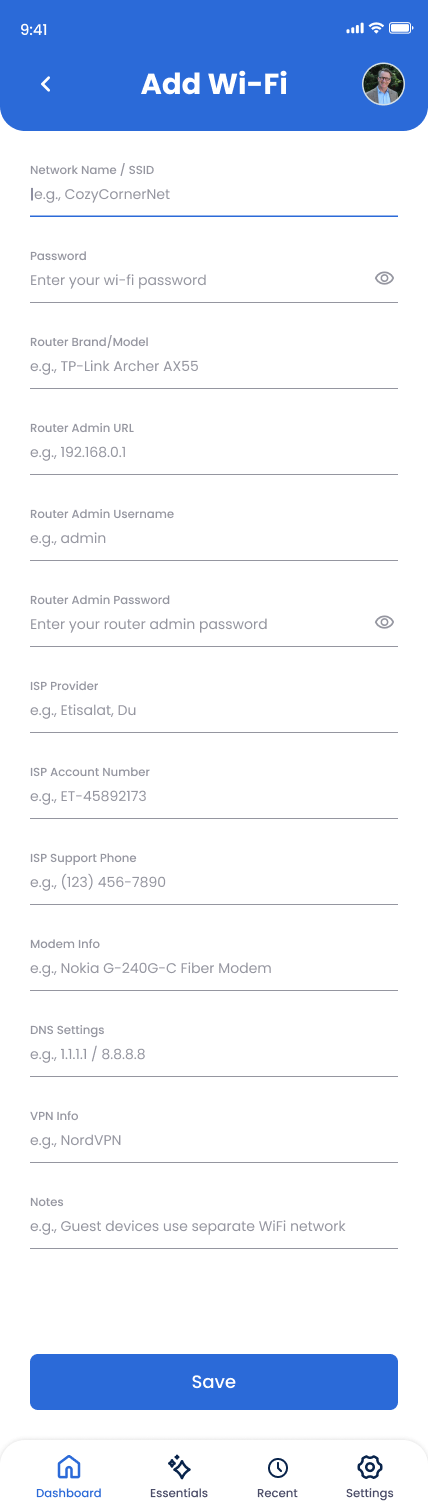
How to Add Your Network
Open Devices in the app
Tap Devices and select WiFi & Network.
Add the WiFi essentials
SSID and password — what your family will type into a new phone or laptop.
Document the router admin access
Brand/model, admin URL or app, username and password. Without this, no one can change settings or troubleshoot.
Add ISP info
Provider, account number, support phone — for when service drops or billing needs to change.
Add VPN and DNS if used
Many people forget these — but if your devices are misbehaving, the cause is often custom DNS or a VPN profile.
Why This Matters
Modern households run on internet connectivity — security cameras, smart locks, thermostats, doorbells, banking apps, the whole stack. When the network goes down or service needs to change, having the router admin and ISP account info already documented turns a stressful afternoon into a five-minute phone call.