Managing File Shares & Documents
Important files are scattered everywhere. A will in Google Drive. Photos in an external hard drive. Creative work in the cloud. Your financial records on a laptop. Without documentation, these treasures are lost or inaccessible. Trust Blocks lets you inventory your important files, specify where they are, who should receive them, and how to access them. Your legacy won't be lost — it will reach the people who matter most.
What You Can Document
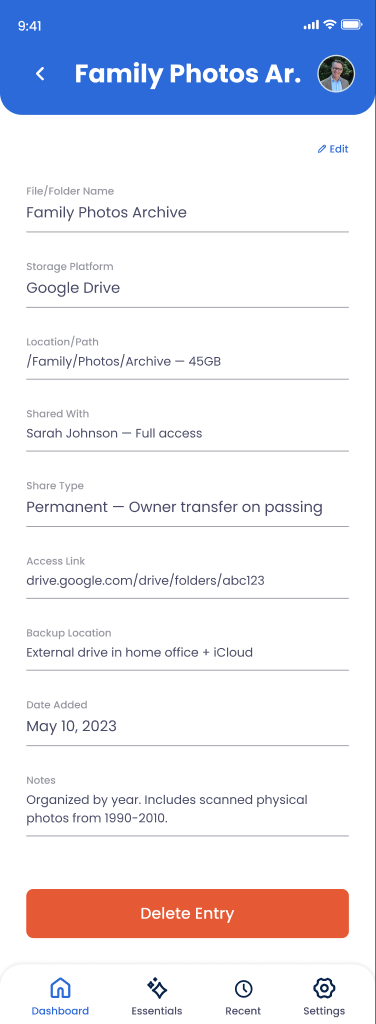
File Description
What the file is — "wedding photos," "will," "creative portfolio," "home renovation receipts" — and why it matters.
Storage Location
Where the file lives — Google Drive folder, Dropbox, external hard drive, iCloud, local computer directory, etc.
Access Credentials
Passwords, shared links, or account information needed to access the file or folder. Trust Blocks encrypts this securely.
Recipient or Heir
Who should receive this file — a specific Transfer Contact or multiple people who should share it.
Priority Level
Mark as critical, important, or nice-to-have so handlers know which files need immediate attention.
Notes & Instructions
Context about the file, why it matters, or special handling instructions for the recipient.
How to Document Files
Go to Digital Legacy > Files
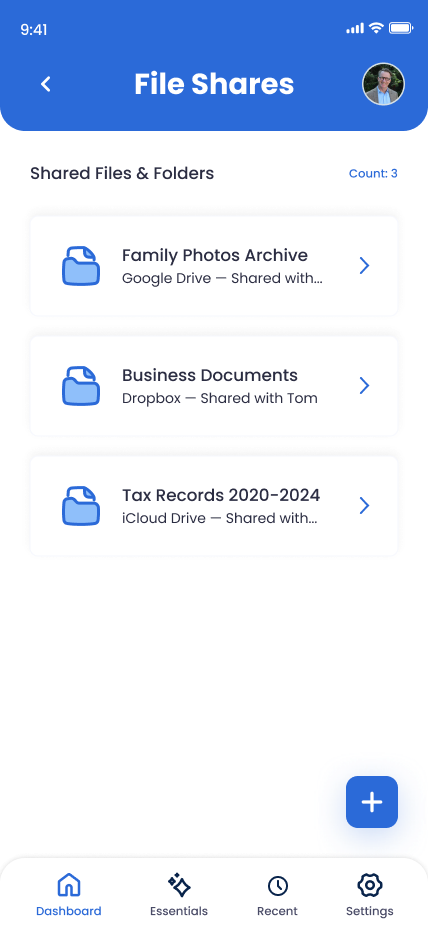
From your Trust Blocks dashboard, navigate to Digital Legacy and select File Shares. You'll see a list of important files you've documented and a button to add new ones.
Click "Add File"
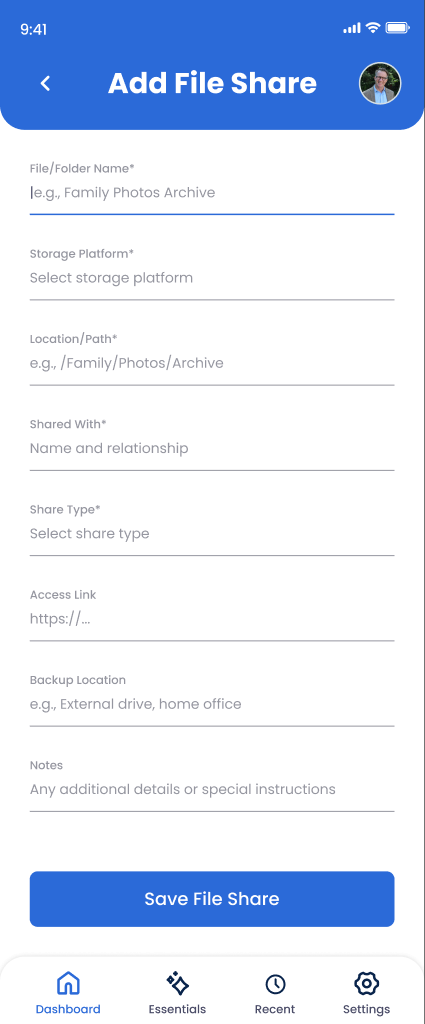
Tap to open the file documentation form. Trust Blocks guides you through documenting where the file is and who should receive it.
Describe the File
Write a clear description: "My will and trust documents," "Family photo archives," "Business logos and design files," etc. Make it obvious what this is and why it matters.
Specify the Location
Be exact: "Google Drive folder: Shared with spouse > Estate Documents," "External hard drive labeled 'Archives' in office closet," or "Laptop: Documents > Creative Work." Specificity ensures files are actually found.
Provide Access Information
Add the password to the cloud account, the shared link, or other access details. Trust Blocks encrypts this end-to-end, so only authorized people can see it.
Assign Recipients
Choose who should receive this file. One person or several people. If it's a will, mark your executor. If it's family photos, mark multiple children. You decide who gets what.
Set Priority
Mark the file as Critical (must be found immediately), Important (should be accessed soon), or Nice-to-have (lower urgency). This helps your Transfer Contact prioritize.
Add Notes (Optional)
Include context: "This is my creative portfolio — I want it to represent me accurately," or "These receipts prove ownership of the home," or "Use these photos for my memorial." Notes guide recipients on how to use the files.
Save
Review the file entry for completeness, then save. Trust Blocks securely stores your file inventory and access information. You can edit or delete entries anytime.
Managing Your Files
Why This Matters
Your important files are scattered everywhere. Your will is on the laptop. Photos are on an external drive. Documents are in three different cloud services. Without documentation, these treasures are lost. Your family won't know they exist. Critical documents go unfound. Precious memories are inaccessible forever.
File documentation changes this. You're creating a roadmap to your digital assets. You're saying, "Here's what matters. Here's where it is. Here's who should have it." You're ensuring that important documents reach your executor, treasured photos reach your family, and creative work reaches those who'll appreciate it.
This is practical legacy planning. It's about ensuring that the files that represent you — your achievements, your memories, your wishes — survive and reach the people you care about most.
Tips for File Documentation
Start with Critical Documents
Will, trust, financial records, insurance policies. Get the essentials documented first. Then add sentimental items like photos and creative work.
Be Incredibly Specific About Locations
"Google Drive" is vague. "Google Drive > Shared with spouse > Estate Planning > Will & Trust" is crystal clear. The more specific, the easier it is for someone to find exactly what they need.
Use Descriptive File Names
If you're reorganizing for your legacy, rename files to be clear. "Will_2025_Signed.pdf" is better than "Will_FINAL_v2.pdf." Clear names help everyone understand what they're looking at.
Review Your File Inventory Yearly
As you create, move, or delete files, update Trust Blocks. Annual reviews ensure your documentation stays current and nothing is forgotten. Set a reminder for next year.