General Online Accounts & Email
Email, social media, banking portals, shopping accounts, medical records—these are the backbone of modern life. Without a record of them, your trusted contacts won't know they exist. And even if they do, they won't be able to access them. The General Online Accounts section is where you document everything else: the accounts that don't fit into specialized categories.
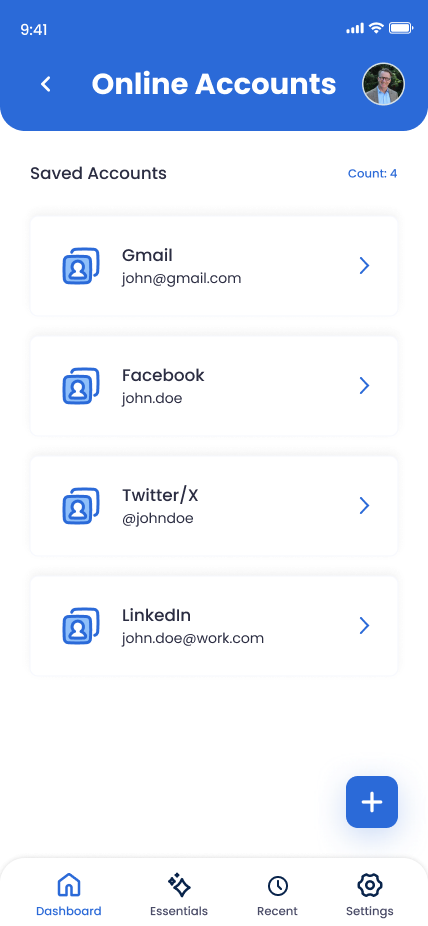
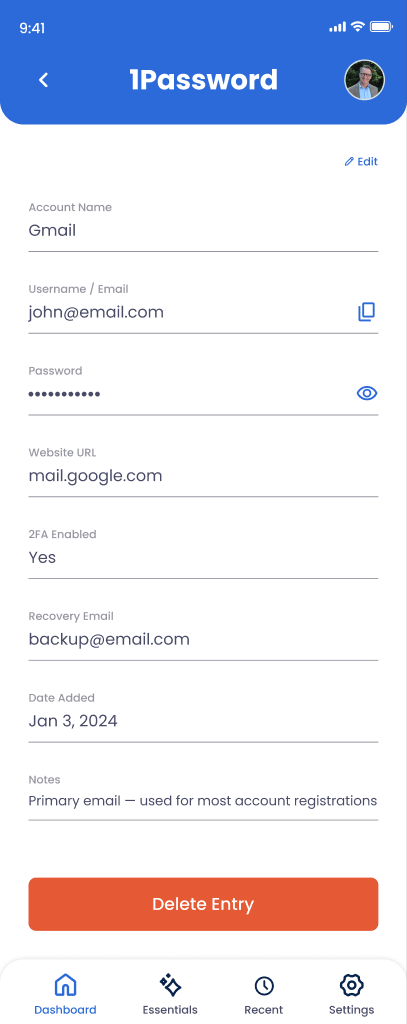
What You Can Store
Service Name & URL
Gmail, Amazon, Bank of America, LinkedIn, Facebook, etc.—and the exact website address.
Username & Email
Which email or username you use to log in. Some services use email, others use custom usernames.
Password
Your login password, encrypted and protected by your PIN. Only people you authorize will see it.
Recovery Email & Phone
Alternate email or phone number the service uses for account recovery.
Security Notes
Account number, PIN, security questions, or any other details relevant to accessing or recovering the account.
Account Type & Importance
Critical (email, banking), important (insurance, investment), or discretionary (social media). Helps prioritize.
How to Add a General Online Account
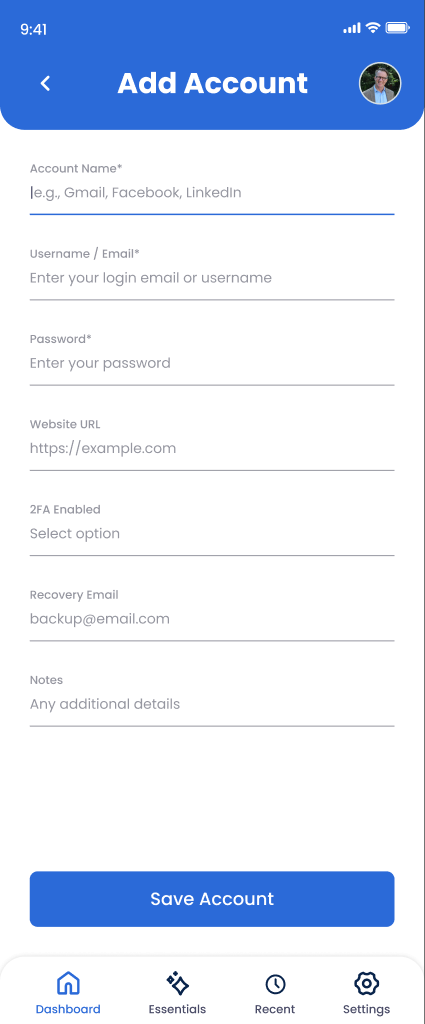
Go to Online Accounts and tap "Add Account"
Navigate to Trust Blocks' Online Accounts section.
Select the service or "General Account"
If your service (Gmail, Amazon, Bank of America) is in the list, select it. Otherwise, choose "Custom" or "General Account."
Enter the website URL
Type the exact URL: gmail.com, amazon.com, bankofamerica.com. This helps your trusted contacts navigate directly to the login page.
Add your username or email
What do you type to log in? Your email, or a custom username?
Enter your password
Type your login password. Trust Blocks encrypts it, and only the trusted contacts you authorize will see it.
Add recovery email and phone (optional)
Include the backup email or phone number you set up for password recovery. This helps your trusted contacts regain access if they forget the password.
Add account number or security notes
For banking, insurance, or investment accounts, include the account number. For any account, note important details (PIN, account type, etc.).
Mark importance level and set permissions
Is this critical, important, or discretionary? Save and choose who can access it (executor, spouse, trusted family).
Managing Your General Account Entries
Update passwords regularly
When you change a password, come back and update it here. Outdated passwords won't work—and your executor will be locked out.
Delete closed accounts
When you close an account or stop using a service, delete the entry. Keep your list current and relevant.
Use tags to organize
Tag accounts by category: #banking, #email, #social, #shopping. This helps your executor find what they need quickly.
Note accounts with shared access
If a family member also uses an account (like a joint bank account), note that. Your executor needs to know who else has access.
Why This Matters for Your Digital Legacy
Think about your online life. You probably have 50+ accounts: email, social media, banking, shopping, utilities, insurance, medical records, subscriptions, forums, games, and more. Each one is a thread in the fabric of your digital existence.
Without a record of these accounts, your executor has to guess. They might never find your investment accounts or medical records. They might not know about unpaid bills or active subscriptions. They'll miss digital assets, photos, and messages.
By documenting these accounts here, you're creating a complete map of your digital life. You're ensuring nothing gets lost. You're making it easy for your trusted contacts to settle your affairs, access important information, and preserve your digital legacy.
Key Tips
Prioritize critical accounts
Start with email and banking. Everything else relies on email for password recovery, and banking is often needed for estate settlement. Then work backward to less critical accounts.
Check your browser autofill
Your browser remembers dozens of passwords. Go through the autofill list and add any accounts you forgot about to Trust Blocks.
Use strong, unique passwords
If you're not already, start using a password manager (1Password, Bitwarden) for new accounts. This also makes it easier to document them in Trust Blocks.
Don't forget usernames
Many sites use email as the login, but some use custom usernames. Note what you actually type to log in. Your executor will need to know.