Password Manager Master Passwords & Recovery Keys
Your password manager is the vault for everything else. Storing your master password, recovery keys, and backup codes in Trust Blocks ensures your trusted contacts can access your digital life when needed—and that these critical credentials never get lost.
What You Can Store
Master Password
The primary password that unlocks your entire password vault.
Recovery Key / Emergency Access Code
The all-caps code (like 1Password's Emergency Kit) that bypasses your master password.
Two-Factor Authentication Backup Codes
One-time codes your password manager provides in case you lose access to your authenticator.
Account Details & Notes
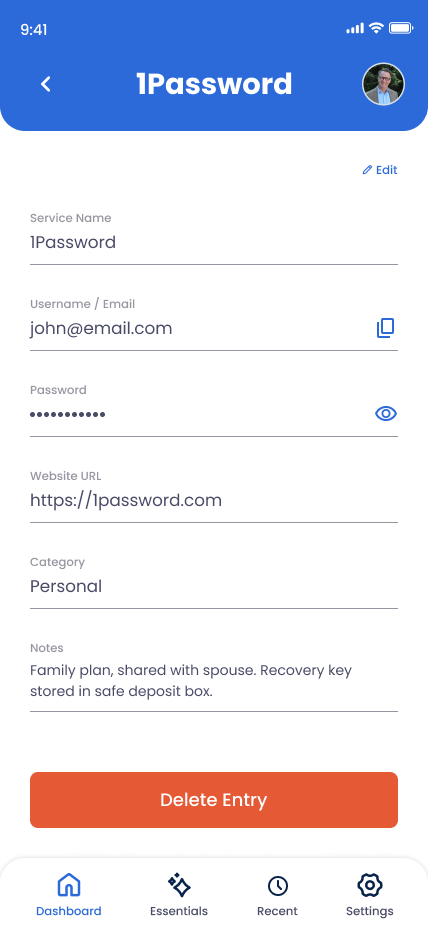
Service name, account email, access instructions, and any special setup notes.
How to Add a Password Manager Entry
Open the Online Accounts section
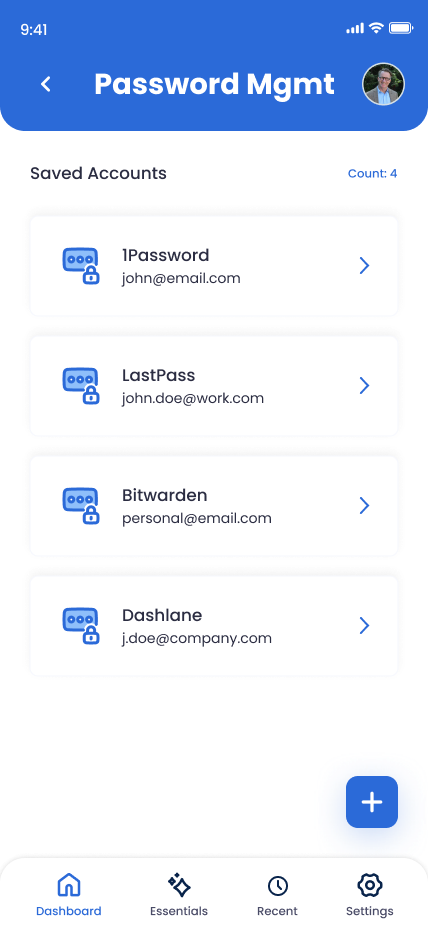
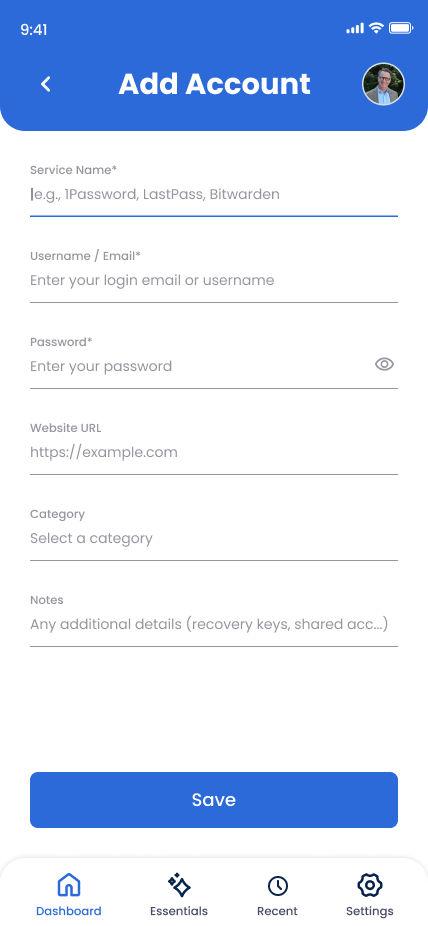
In Trust Blocks, navigate to Online Accounts and tap "Add Account."
Select Password Manager
Choose your service from the list (1Password, LastPass, Bitwarden, Dashlane, etc.) or select "Custom" for others.
Enter your master password
Type or paste your master password. This is encrypted and protected by your PIN—shared only with the trusted contacts you choose if you need them to access your vault.
Add your recovery key
Paste your emergency code or recovery key. This is critical—without it, even your master password won't work if you're locked out.
Store backup codes (optional)
If your password manager has 2FA enabled, add those backup codes too. Note the location of your physical recovery codes or printed backups.
Add helpful notes
Include instructions like "Master password is 36 characters, all lowercase" or "Recovery key printed in study desk drawer."
Save and choose who can see this
Tap "Save." Select which trusted contacts can access this entry. You can always adjust permissions later.
Managing Your Password Manager Entries
Edit an entry
Tap the entry and select "Edit." Update your master password, recovery key, or any details. Trust Blocks keeps version history, so your contacts know when information was last updated.
Change access permissions
You can restrict who sees your password manager entry. Maybe only your spouse gets the master password, but your executor gets the recovery key. Trust Blocks lets you granularize.
Delete or archive old entries
If you switch password managers, delete the old entry. Your trusted contacts won't see passwords for services you no longer use.
Why This Matters for Your Digital Legacy
Your password manager is the master key to your entire digital life. Without it, your trusted contacts can't access email accounts, financial portals, medical records, or any other critical services. And without your recovery key, even the right master password might not work.
Many people store passwords in their heads or scattered across notes—and when an emergency happens, that knowledge is lost. Trust Blocks changes that. By organizing and securing these credentials here, you're giving your trusted contacts a clear, encrypted path forward.
You're also protecting yourself. If you're ever locked out of your own account, having these credentials backed up here means you can regain access quickly—no need to wait for customer support or reset emails.
Key Tips
Update it when you change your master password
Every time you update your password manager's master password, come back here and edit the entry. Outdated credentials won't help anyone.
Store the recovery key separately, too
Consider printing your recovery key and storing it in a safe or safety deposit box. Trust Blocks is encrypted, but redundancy saves lives.
Don't store the main password twice
You have this here, plus the backup codes in the 2FA section. That's enough redundancy. Resist the urge to paste it everywhere.
Choose your audience wisely
Your master password is powerful. Maybe only your spouse or closest family member needs it. Your executor might only need the recovery key.