Two-Factor Authentication Backup Codes & Recovery Methods
2FA protects your accounts from hackers, but it also creates a risk: lose your authenticator, and you're locked out. Storing your backup codes and recovery methods in Trust Blocks means your trusted contacts can help you—or themselves—regain access in a real emergency.
What You Can Store
Backup Codes
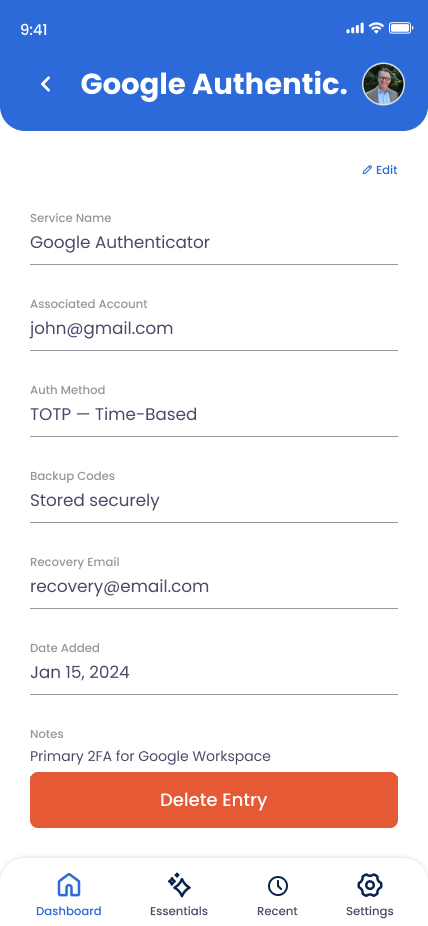
One-time passcodes (usually 10–16 codes) that bypass your authenticator when you can't access your phone.
Recovery Email Address
The alternate email you registered with the service, used to reset 2FA if you're locked out.
Authenticator App Details
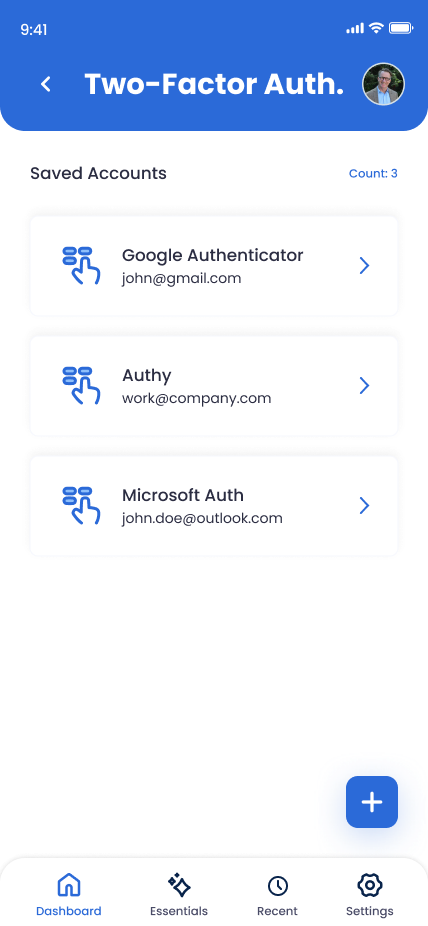
Which app you use (Google Authenticator, Microsoft Authenticator, Authy), and any relevant account info.
Recovery Codes & Setup Keys
The secret QR code or text key (useful if you need to re-register your authenticator on a new phone).
How to Add a Two-Factor Authentication Entry
Open Online Accounts and tap "Add Account"
Navigate to the Online Accounts section in Trust Blocks.
Choose the service
Select the account you're protecting (Gmail, Stripe, GitHub, Apple, etc.) or choose "Custom" for unlisted services.
Select "2FA Backup Codes" or similar
Choose the option for storing 2FA recovery information (not the main password, just the 2FA backup).
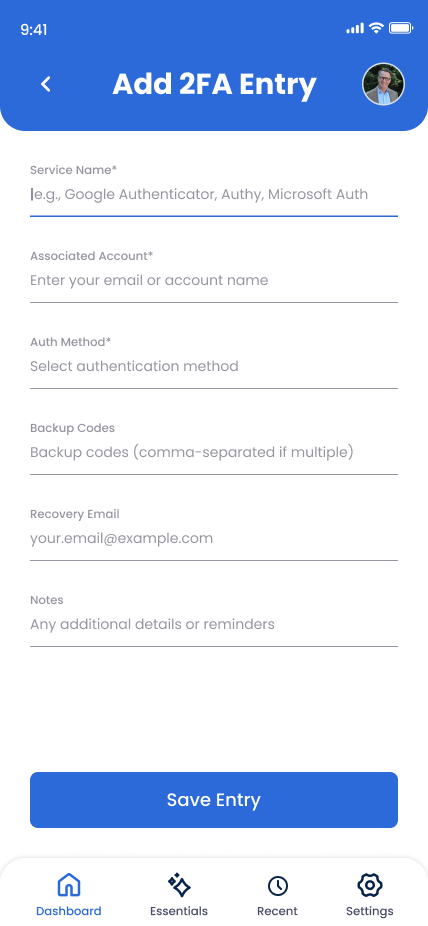
Paste your backup codes
Copy all of your one-time backup codes from the service (you usually see them when you first enable 2FA) and paste them here. Trust Blocks encrypts them with strong encryption.
Add the recovery email
Enter the alternate email address you registered for account recovery (if different from your main email).
Note the authenticator app
Add a note about which authenticator app you use and any tips for re-registering if you get a new phone.
Save and set access permissions
Tap "Save." Choose which trusted contacts need to see these backup codes (usually just a spouse or close family).
Managing Your 2FA Entries
Update backup codes after using one
If you ever use a backup code to log in, mark it as used or delete it from this entry. Keeping track ensures your trusted contacts know which codes are still available.
Regenerate codes if you lose access
Many services let you regenerate backup codes after losing your authenticator. If you do, come back to Trust Blocks and update the codes immediately.
Keep a printed copy in a safe place
Trust Blocks is secure, but redundancy is good practice. Print your backup codes and store them in a safe deposit box or home safe.
Why This Matters for Your Digital Legacy
Two-factor authentication is one of your best defenses against account takeover. But it creates a critical vulnerability: if you lose access to your authenticator, even the correct password won't get you in. And your trusted contacts face the same problem if they need to access your accounts.
Many people don't save their backup codes at all—they assume they'll never need them. Then disaster strikes: a phone is stolen, an app crashes, or a service account is compromised. Without backup codes, regaining access can take days or weeks of customer support.
By storing 2FA backup codes here, you're ensuring that in an emergency, there's always a way in. Your trusted contacts won't be locked out trying to settle your estate or manage your digital assets.
Key Tips
Don't lose the setup key
Some services show you a secret QR or text key when you set up 2FA. This lets you re-add the account to a new phone. Store this too—in a safe, not just here.
Use Authy over Google Authenticator
Authy syncs across devices, so if your phone breaks, your codes still exist. Google Authenticator stores everything on one device, making it riskier.
Test your backup code
Don't wait for an emergency. Log out of an account and use a backup code to log back in. You'll confirm they actually work and your trusted contacts know the process.
Limit access to these codes
2FA backup codes are sensitive. You might give the account password to an executor, but only close family should get these recovery codes.