How to Set Up Your Trust Blocks Account in Minutes
Our streamlined process gets you up and running in just minutes, so you can start securing your digital assets right away.
7 mins Read
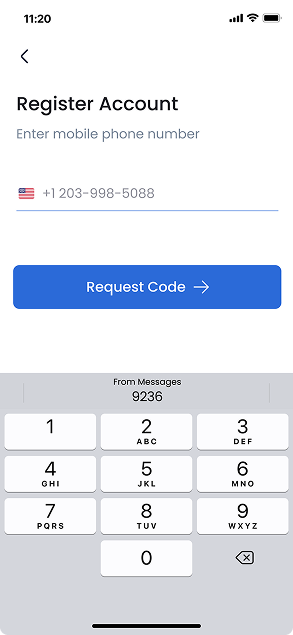
1. Enter Your Mobile Phone Number
After you see the Trust Blocks App splash screen, you will automatically come to a screen that will ask you to register your mobile number. Once you click on the 'Request Code' button, you will be sent a 4-digit code to the phone number you provide. You will need to enter this code on the next screen.
The verification process typically takes less than 30 seconds, ensuring a quick setup experience. This security step helps protect your account from unauthorized access while verifying your identity. Make sure your phone has an active signal to receive the SMS promptly.
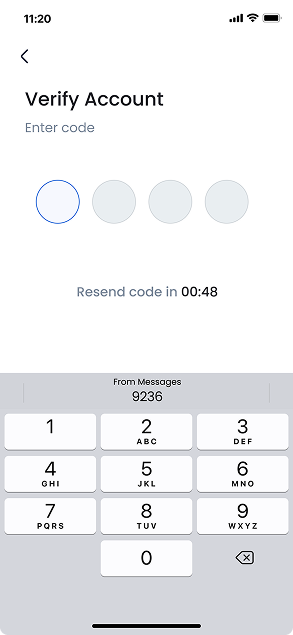
2. Enter Verification Code
Enter the 4-digit verification code that was sent to your mobile phone. This code verifies that you have access to the phone number you provided.
If you don't receive the code within 30 seconds, you can use the "Resend Code" option. Make sure to check that you entered your phone number correctly in the previous step.
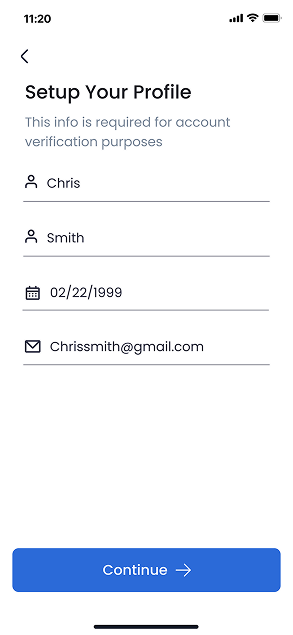
3. Create Your Profile
Complete your profile by entering your personal information. This includes your name, email address, and other required details.
Your profile information helps identify you within the Trust Blocks system and ensures you can be properly contacted if needed. All information is securely stored and protected.
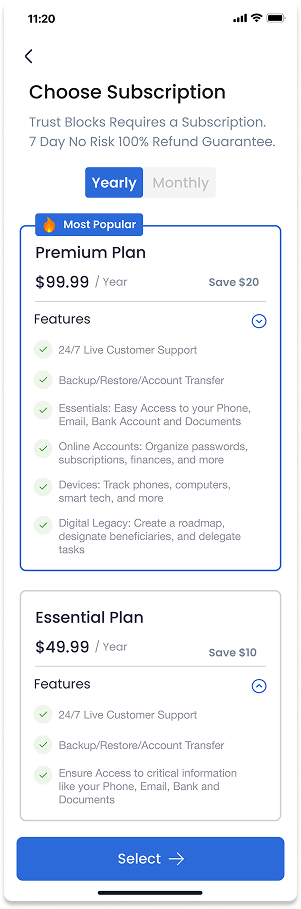
4. Choose Your Subscription
On this screen, you can choose a subscription plan. You will see both yearly and monthly options to suit your needs. Many people choose a yearly plan for the best value.
Trust Blocks requires a subscription to access all features. Every plan comes with a 30-day money-back guarantee — no questions asked — so you can try it with real peace of mind. Each plan includes different features and benefits, which are clearly outlined for comparison. Once you've selected your preferred plan, click the 'Select' button to proceed to payment details.

5. Create A Security Pin
Once you have selected a subscription plan, you will be taken to a screen where you create your personal security PIN. This 6-digit security PIN encrypts and decrypts your data, providing an essential layer of protection for your sensitive information. You will use this PIN to sign into the app every time you wish to use it.
For added convenience, you can also enable Face ID or Touch ID on this screen for quicker and more seamless access. Please remember to choose a unique PIN that is not easily guessable and avoid using common sequences or personal dates.
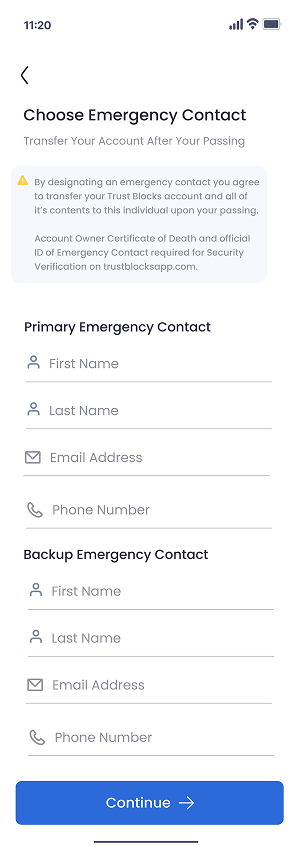
6. Choose Your Transfer Contact
Lastly, you will need to provide details of your Transfer Contact. By designating a Transfer Contact, you agree to transfer your Trust Blocks account and all of its contents to this individual upon your passing. This crucial step ensures that your digital legacy and important information remain accessible to your trusted designee when needed. You'll need to enter their full name, email address, and phone number.
When the time comes, your Transfer Contact starts the transfer with their own photo ID — no death certificate needed. Trust Blocks then waits 48 hours as a safety step, checks that they're the person you chose, and a real person reviews the request before anything opens. You can update your Transfer Contact at any time in your account settings. We recommend telling your Transfer Contact about their role and where to find your Trust Blocks account, so the handoff is smooth when it matters.
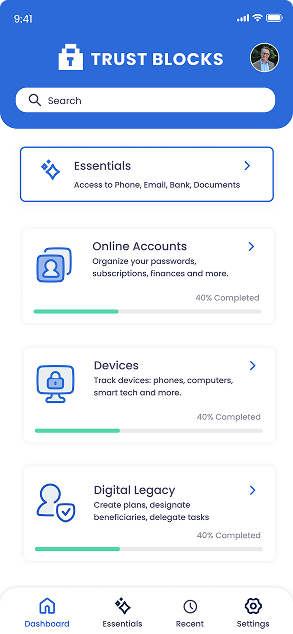
7. See Your Dashboard
Congratulations! You are finally all set up! Your Dashboard is now displayed, showing all the various ways you can manage your Trust Blocks account. Here you'll find quick access to your secure documents, Transfer Contacts, account settings, and subscription details.

Questions to Ask Your Attorney About Digital Assets
Plain-English questions to ask your attorney about digital assets, online accounts, cloud storage, crypto, and social media so your family can actually get in.

How to Protect Your Email Account From Being Taken Over
Learn how to protect your email account from takeover with strong passwords, two-factor authentication, and smart recovery settings in this plain-English guide.

How to Create a Secure Emergency Access Plan
Create a secure emergency access plan that lets a trusted Transfer Contact help in a crisis using only the access they need, while private accounts stay safe.

How to Inventory Your Online Accounts in One Afternoon
Learn how to inventory online accounts in one afternoon using your email, browser, statements, and app stores to build a clear, findable digital account list.

Conversation Starters for Advisors Discussing Digital Legacy
Use these digital legacy conversation starters to help clients plan passwords, online accounts, family access, documents, and incapacity with confidence.

What Advisors Should Know About Digital Assets in 2026
Help clients close the digital assets in 2026 gap. Learn why online account access is the real asset and how a Transfer Contact protects their family.

How Password Managers Are Becoming Part of Family Planning
See how password managers fit into family planning, from family plans and shared vaults to emergency access, master passwords, and naming a Transfer Contact.

How Trust Blocks Is Making Digital Estate Planning Easier
See how Trust Blocks simplifies digital estate planning, helping families organize accounts, devices, and a trusted Transfer Contact in one secure place.
Join Our Newsletter
Stay updated with the latest tips, news, and
insights from Trust
Blocks