Maximizing Security: Setting Up Your PIN and Authentication
Trust Blocks' multi-layered security system starts with your personalized PIN and authentication methods.
7 mins Read
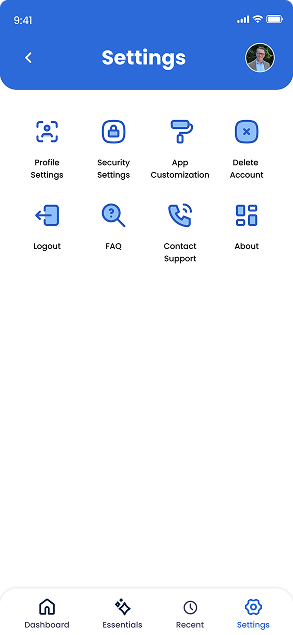
1. Access Your Account Settings
Click on the 'Settings' button and gear icon located at the bottom of your screen. It is the last button in the navigation bar. Once you click that, you will see a comprehensive screen of various account information that you can access and edit. Here you can update your personal details, change your security PIN, modify your subscription plan, manage notification preferences, and adjust privacy settings.
If you need to change your pin, you'll find that option here under 'Security Settings'.
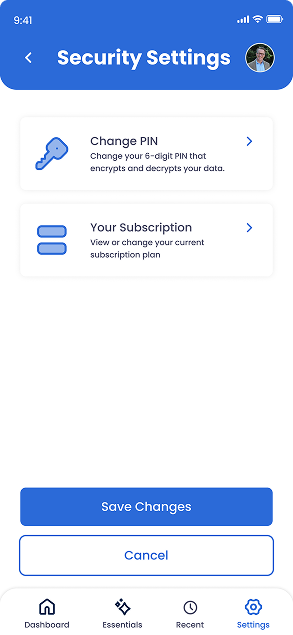
2. Click on Security Settings’
Once you click on 'Security Settings', you will see various actions that you can take. This includes changing your 6-digit PIN, and/or updating your subscription plan.
Since you want to know how to change your PIN, click on 'Change PIN'.
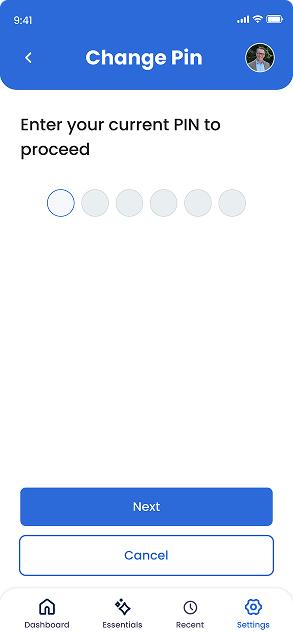
3. Enter Your Current PIN
In order to change your PIN, you will be asked to enter your existing PIN first. Click 'Next' once you have typed in your existing PIN.
(If you have forgotten it, you will see a 'Forgot PIN?' button when you first try to log in to the app. Use that flow if you have forgotten your PIN.)
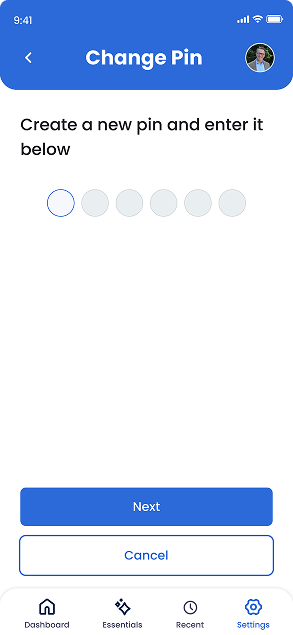
4. Create A New PIN
Then you will be prompted to create a new PIN. This 6-digit security PIN encrypts and decrypts your data, providing an essential layer of protection for your sensitive information. You will use this PIN to log into the app every time you wish to use it.
Choose a unique combination that is not easily guessable, avoiding common sequences like 123456 or personal dates. For security reasons, your PIN should be different from other PINs you use for banking or other services. After entering your new PIN, you'll be asked to confirm it by entering it a second time to prevent any typing errors.
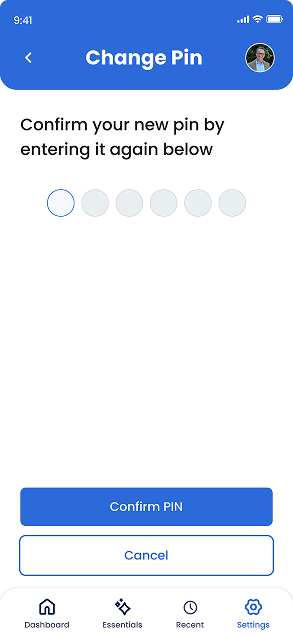
5. Confirm Your New PIN
Confirm your new PIN by entering it again on this screen. This is done to prevent any typing errors. Double-checking ensures that you haven't mistyped your intended PIN combination. If the PINs don't match, you'll receive an error message and be prompted to try again.
Once successfully confirmed, the system will verify and update your security credentials. Your new PIN will be active immediately for all future logins. Remember that this PIN is the primary key to accessing your sensitive information, so take a moment to commit it to memory or securely note it somewhere safe before proceeding.
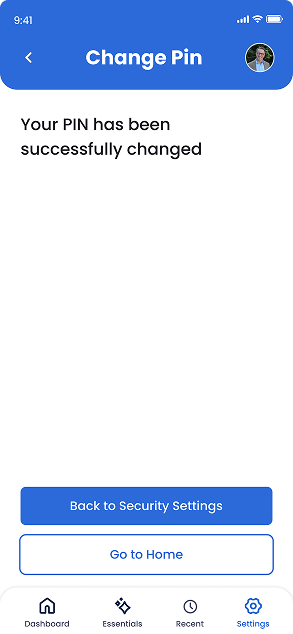
6. Confirmation
You will be confirmed on this screen if your PIN has been successfully changed.
Once successfully confirmed, the system will verify and update your security credentials. Your new PIN will be active immediately for all future logins. Remember that this PIN is the primary key to accessing your sensitive information, so take a moment to commit it to memory or securely note it somewhere safe before proceeding.

Questions to Ask Your Attorney About Digital Assets
Plain-English questions to ask your attorney about digital assets, online accounts, cloud storage, crypto, and social media so your family can actually get in.

How to Protect Your Email Account From Being Taken Over
Learn how to protect your email account from takeover with strong passwords, two-factor authentication, and smart recovery settings in this plain-English guide.

How to Create a Secure Emergency Access Plan
Create a secure emergency access plan that lets a trusted Transfer Contact help in a crisis using only the access they need, while private accounts stay safe.

How to Inventory Your Online Accounts in One Afternoon
Learn how to inventory online accounts in one afternoon using your email, browser, statements, and app stores to build a clear, findable digital account list.

Conversation Starters for Advisors Discussing Digital Legacy
Use these digital legacy conversation starters to help clients plan passwords, online accounts, family access, documents, and incapacity with confidence.

What Advisors Should Know About Digital Assets in 2026
Help clients close the digital assets in 2026 gap. Learn why online account access is the real asset and how a Transfer Contact protects their family.

How Password Managers Are Becoming Part of Family Planning
See how password managers fit into family planning, from family plans and shared vaults to emergency access, master passwords, and naming a Transfer Contact.

How Trust Blocks Is Making Digital Estate Planning Easier
See how Trust Blocks simplifies digital estate planning, helping families organize accounts, devices, and a trusted Transfer Contact in one secure place.
Join Our Newsletter
Stay updated with the latest tips, news, and
insights from Trust
Blocks