Smartphone
Phones and tablets carry your day-to-day digital life: messages, two-factor codes, banking apps, photos. Storing the credentials to unlock and recover them ensures your trusted contacts can pick up where you left off.
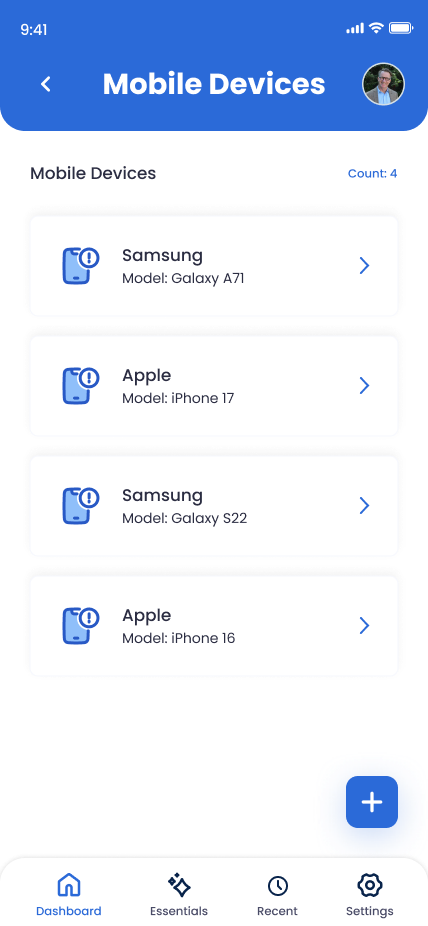
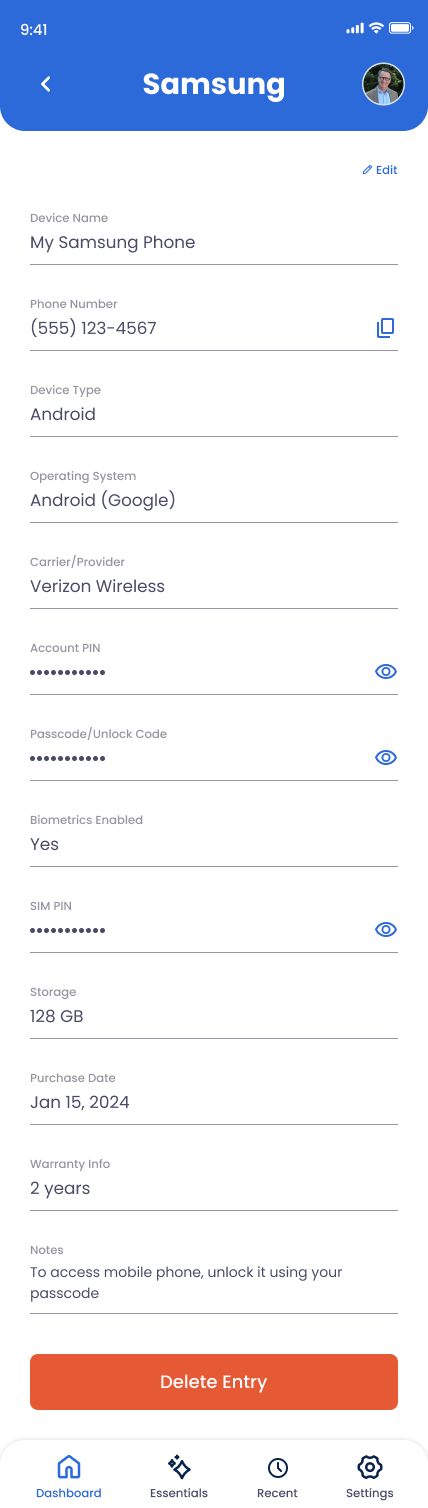
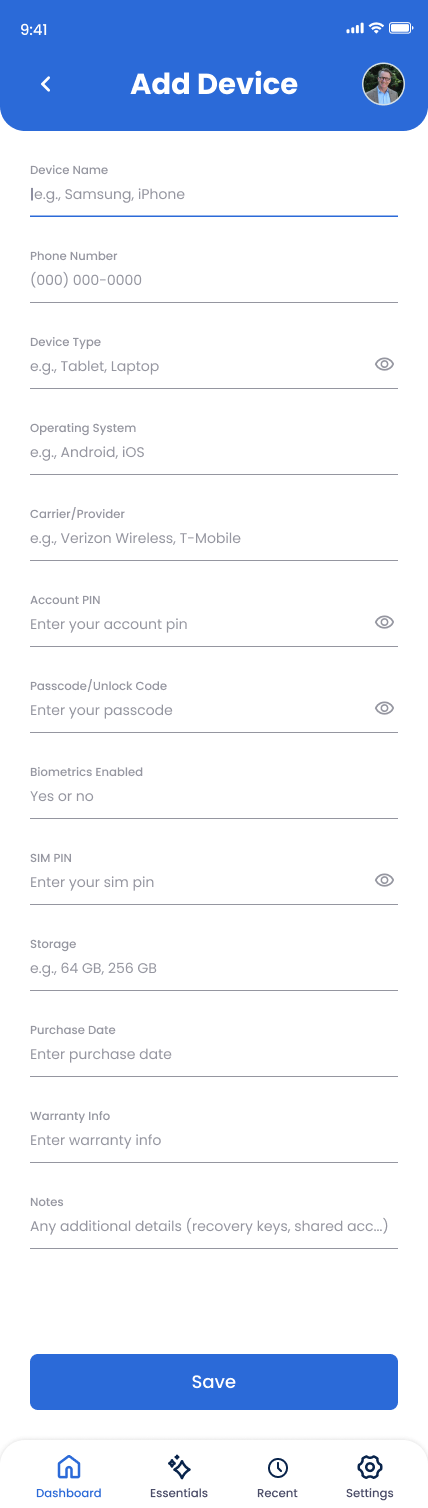
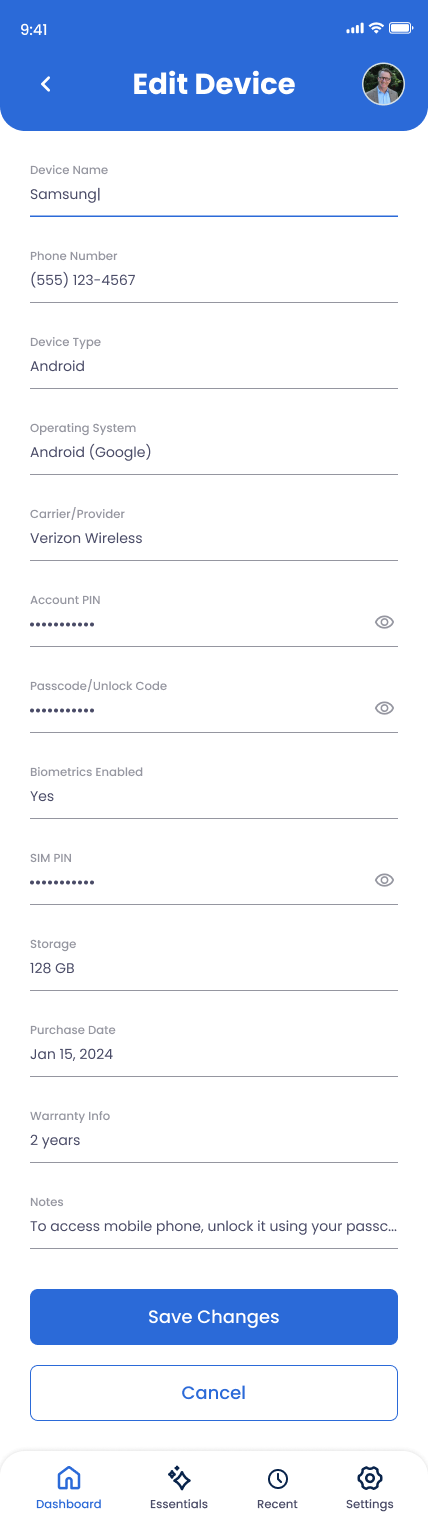
What You Can Store
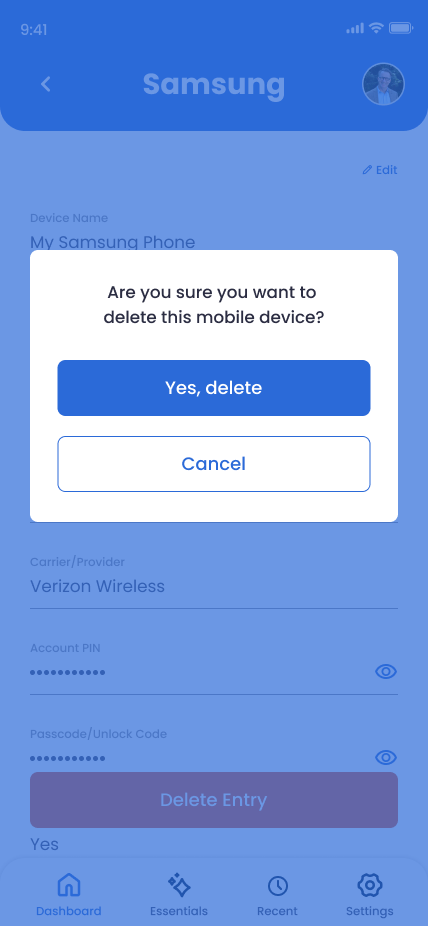
Device Name
A label like "Personal iPhone" or "Mom's iPad."
Phone Number
The line attached to the device, if any.
Device Type
iPhone, Android, Tablet, or Other.
Operating System
"iOS 18", "Android 14" — useful for support or recovery flows.
Carrier / Provider
Verizon, AT&T, T-Mobile, Mint, etc.
Account PIN
The carrier account PIN — required to make changes by phone.
Passcode / Unlock Code
The numeric or alphanumeric code that unlocks the device.
Biometrics Enabled
Yes/no toggle for Face ID, Touch ID, or fingerprint.
SIM PIN
If you've enabled a SIM lock, the code that unlocks it.
Storage
"128GB," "512GB" — useful for warranty or trade-in.
Purchase Date & Warranty
Helps your family if the device breaks or needs service.
Notes
eSIM details, screen protector type, accessories that come with it.
How to Add a Smartphone
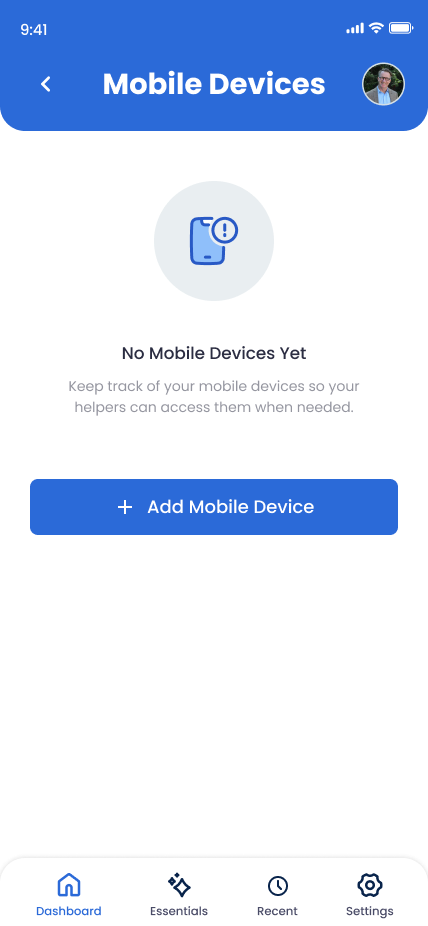
Open Devices in the app
Tap Devices and select Mobile Devices.
Name and identify it
Pick a label, choose the type, enter the phone number and carrier.
Add unlock credentials
Passcode, biometrics toggle, and SIM PIN if you use one.
Document carrier account access
Account PIN — your family will need it to port the line, suspend service, or make plan changes.
Save and repeat for other devices
Add a separate entry for each phone or tablet you want documented.
Why This Matters
A locked phone is a wall around everything else — banking apps, two-factor codes, photo libraries, password managers. The carrier PIN matters too: without it, your family can't suspend service, port the number, or stop charges.