TV & Smart Home
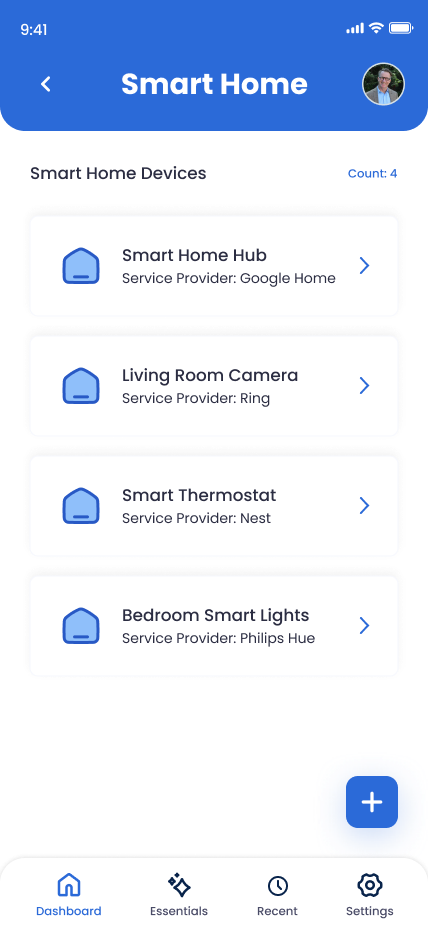
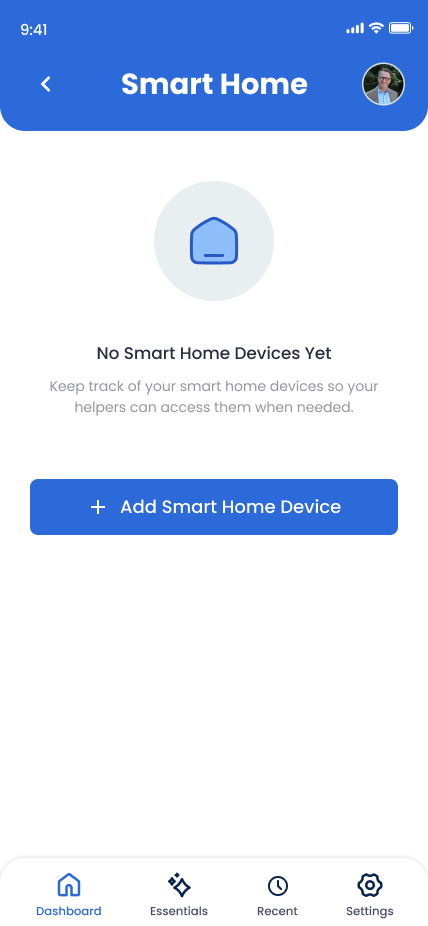
Smart speakers, displays, thermostats, cameras, doorbells, locks — and the apps that control them. Documenting which app each device uses (and the login for that app) means your family can keep the home running, transfer ownership, or remove devices when needed.
What You Can Store
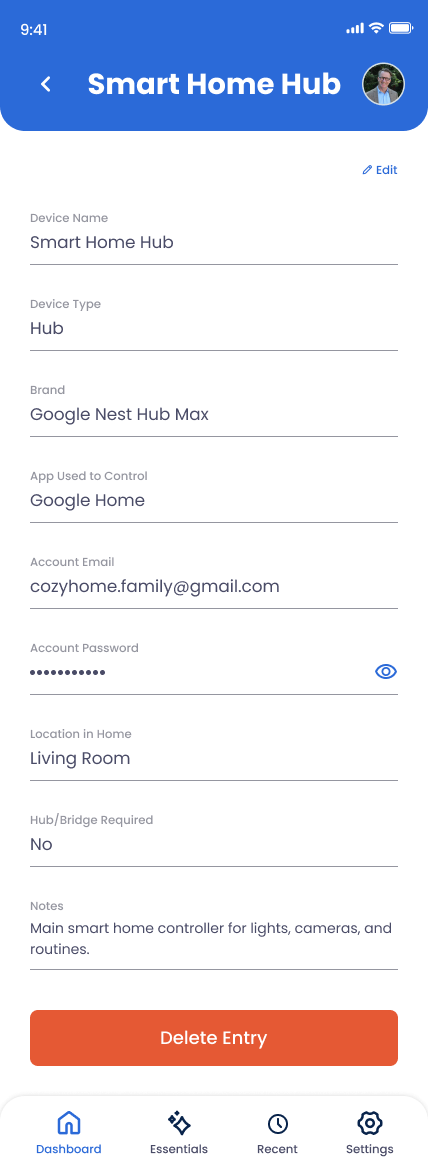
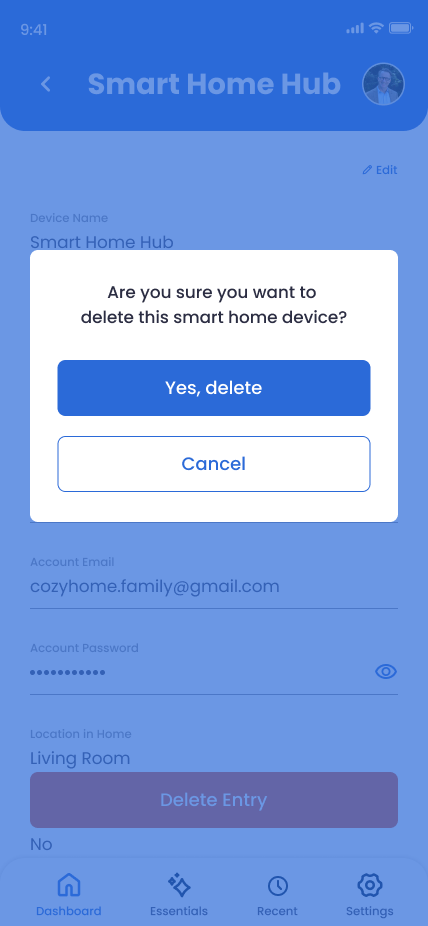
Device Name
"Living Room Echo," "Front Door Lock."
Device Type
Smart Speaker, Smart Display, Thermostat, Camera, Doorbell, Lock, Light, Plug, Hub, or Other.
Brand
Amazon, Google, Nest, Ring, Philips Hue, Sonos, etc.
App Used to Control
"Google Home," "Alexa," "Nest," "Philips Hue."
Account Email
The email tied to the controlling app's account.
Account Password
The login password for that app.
Location in Home
"Living Room," "Master Bedroom," "Garage" — helps your family identify which device is which.
Hub / Bridge Required
Yes/no toggle. Some devices (Hue, SmartThings) need a hub on your network.
Notes
Pairing instructions, power source, where the spare battery is, automations it's part of.
How to Add a TV or Smart Home Device
Open Devices in the app
Tap Devices and select Smart Home Devices.
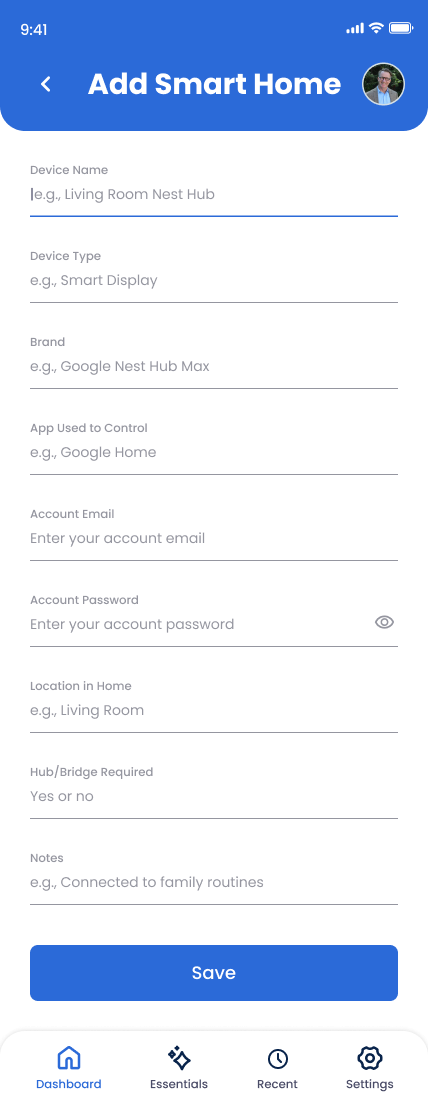
Name and place it
Device name and location — be specific so your family knows which one breaks if it does.
Note the controlling app and login
This is the most important part — without app access, the device is just plastic.
Toggle Hub Required if applicable
If the device needs a Hue Bridge or SmartThings hub, note where the hub physically is so your family can identify it on the network.
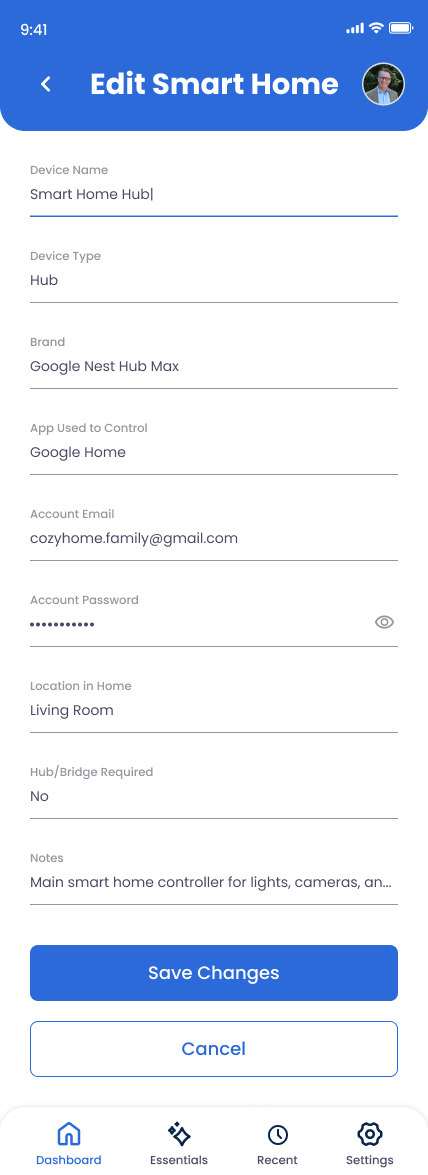
Save and add others
A separate entry per physical device works best — even if they share an app.
Why This Matters
Smart home devices are tied to your accounts, not just your house. A doorbell camera with no login access can't be removed before a sale; a smart lock with a forgotten controlling app turns into a paperweight. Documenting the controlling app and account makes the home transferable.