Cloud Storage
Your photos, documents, backups, and shared family files probably live in iCloud, Google Drive, Dropbox, OneDrive, or Box. Storing access to these accounts ensures your family can recover memories and important documents.
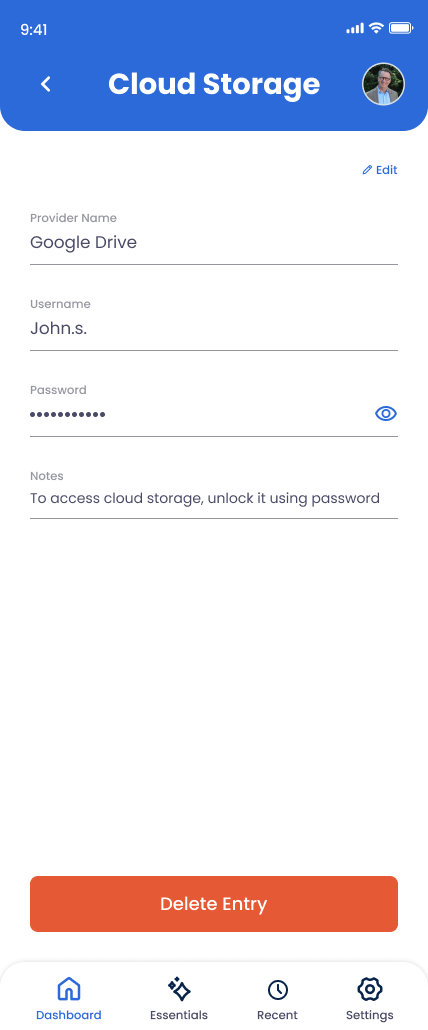
What You Can Store
Provider Name
Pick from the list (Google Drive, iCloud, Dropbox, OneDrive, Box) or choose Other for less common services.
Username
Usually the email address tied to the account.
Password
The login password.
Notes
What's stored there ("family photos 2010-present"), folder names, or recovery method.
How to Add a Cloud Storage Account
Open Essentials in the app
Tap Essentials and select Cloud Storage.
Pick the provider
Start typing — Google Drive, iCloud, Dropbox, OneDrive, and Box autocomplete. Anything else, choose Other and type the name.
Enter username and password
Both encrypted and protected by your PIN.
Note what's stored
In the notes field, briefly describe what your family will find — photos, tax documents, scanned passports, etc. This helps them prioritize.
Repeat for each provider
If you use both iCloud and Google Drive, add separate entries. Each is its own essential.
Why This Matters
Cloud storage holds the irreplaceable: family photos, scanned documents, your kids' first years. Without access, those memories can disappear behind a forgotten password — even though they're technically still there. This Essential makes sure that doesn't happen.