Smartphone
Your phone is the front door to almost everything else in your digital life — banking apps, two-factor codes, email, photos. Storing your passcode in Trust Blocks ensures your family can get in when it matters.
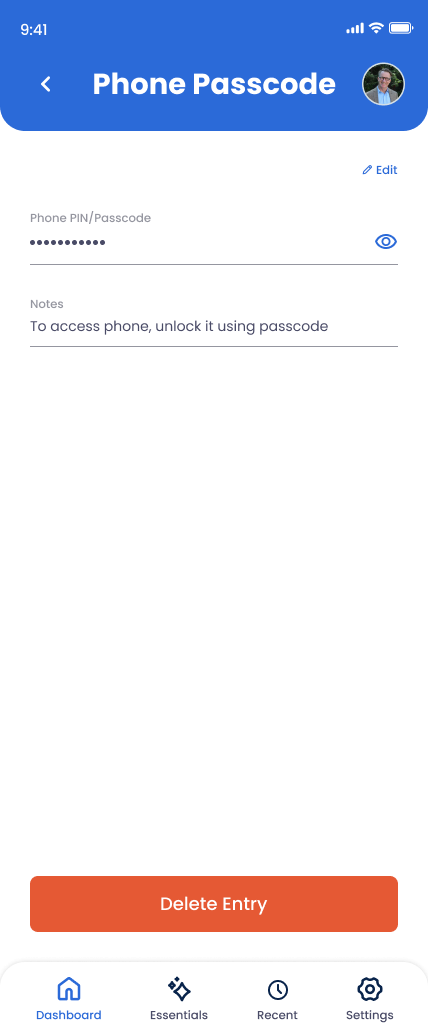
What You Can Store
Label
A name to identify which phone — useful if you have a personal and a work device.
PIN / Passcode
The numeric or alphanumeric code that unlocks your phone.
Notes
Anything that helps — Face ID / Touch ID setup, where backup recovery codes are kept, or which finger is enrolled.
How to Add Your Smartphone
Open Essentials in the app
From the home screen, tap Essentials and select Phone Passcode.
Add a label
Something like "Personal iPhone" or "Work Pixel" so your family knows which device this unlocks.
Enter your passcode
Type or paste it carefully. It's encrypted and protected by your PIN — shared only with the trusted contacts you choose.
Add notes if helpful
Mention Face ID / Touch ID is enabled, where SIM PIN is recorded, or any backup recovery method.
Save
Tap Save. Update this entry whenever you change your passcode.
Why This Matters
The phone passcode is the single most important Essential because almost every modern account recovery flow runs through your phone — SMS verification, authenticator codes, biometric prompts, banking app push notifications. Without it, your family is locked out of every door it opens.