The Family Guide to Safer Online Accounts
A calm, practical family online safety guide for safer online accounts across shared devices, kids, and older parents.
12 mins Read

Most families share more online than they realize.
A tablet gets passed between kids. A streaming login lives on three devices. A grandparent calls because they are locked out of their email. A password gets texted to a sibling and then forgotten.
None of this is unusual. Family life is busy, and online accounts pile up quietly.
The good news is that family online safety does not require you to be a security expert. It mostly comes down to a few simple habits, repeated calmly over time.
This guide walks through the everyday parts of safer online accounts: shared devices, kids' accounts, older parents, password sharing, scam awareness, account recovery, and secure emergency access.
Take it one section at a time. You do not have to fix everything today.
Start With a Calm Family Conversation
Before changing settings, talk.
A short, relaxed conversation does more for family online safety than any single tool. It sets shared expectations and removes the fear of "getting in trouble" when something goes wrong.
You do not need a formal meeting. A few minutes at dinner is enough.
What to talk about
- Which accounts and devices are shared, and which are personal.
- What to do if someone gets a strange message or a login alert.
- Who to ask for help before clicking anything unusual.
- The simple rule that nobody is ever blamed for reporting a mistake.
The goal is to make safety feel normal, not scary. When kids and older parents know they can ask without judgment, they ask sooner. Asking sooner is what keeps small problems small.
Make Shared Devices Safer
Shared devices are where most family habits live. The family tablet, the living-room computer, the old phone that became a kids' device.
These devices often hold more than people expect: saved logins, autofill payment cards, browsing history, and photos.
Set up separate profiles where you can
Many phones, tablets, and computers support multiple user profiles or a guest mode. When each person has their own space, accounts and history stay separated.
- Give kids their own profile with limited permissions.
- Use a guest profile for visitors instead of your main account.
- Keep one trusted adult account for purchases and settings.
Lock the device itself
A device passcode is the first wall around everything else. If a shared device is lost, that passcode is what protects the accounts inside.
- Use a passcode or biometric lock on every shared device.
- Avoid obvious codes like birthdays or 1234.
- Turn on automatic screen lock after a short idle time.
It helps to keep a calm record of where these device passcodes live so the family is never fully locked out. Our guide on the phone passcode essential walks through why this one small detail matters so much.
Clean up saved logins
Browsers love to save passwords. On a shared device, that can mean one person is quietly logged into everyone's accounts.
Review saved logins now and then. Remove the ones that should not live on a shared screen, especially banking and email.
Help Kids Build Safe Account Habits
Kids' accounts are not just smaller versions of adult accounts. Children are still learning what is normal online, which makes clear, simple habits especially valuable.
The aim is not to monitor every move. It is to build judgment that lasts.
Start with the basics
- Use age-appropriate accounts and parental controls where available.
- Keep kids' email and login details written down in a trusted place.
- Teach kids never to share passwords with friends, even close ones.
- Explain that real companies do not ask for passwords in chats or games.
Talk about scams in plain language
Kids run into scams too: fake prizes, "free" in-game items, messages from accounts pretending to be a friend.
Keep scam awareness for family simple and concrete. A short rule like "if a message rushes you or promises something free, stop and ask an adult" is easier to remember than a long lecture.
When kids understand that pausing is the smart move, they are far less likely to click first and regret it later.
Support Older Parents Without Taking Over
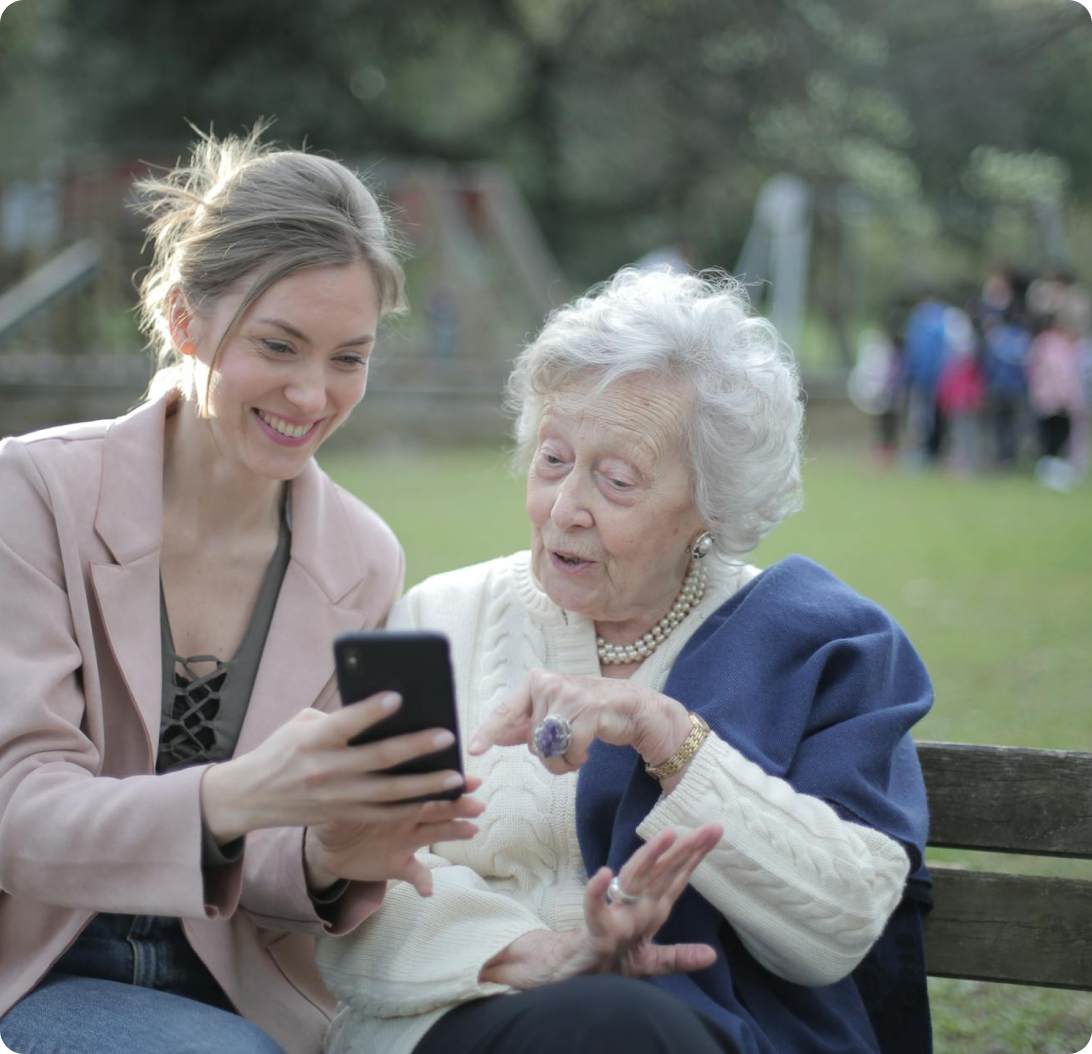
Helping older parents with technology is a balance. You want them safer, but you also want them confident and independent.
The respectful approach is to help them stay in control, not to manage their accounts for them.
Focus on the accounts that matter most
Start with the few accounts that carry real weight: their primary email account, their bank account, and their phone. These are the ones scammers target and the ones that unlock everything else.
- Make sure their email password is strong and not reused elsewhere.
- Confirm their recovery phone number and recovery email are current.
- Set up account alerts so unusual logins are noticed quickly.
Make scam awareness routine
Older adults are frequently targeted by phone, text, and email scams. The most powerful defense is a shared habit, not suspicion of everything.
Agree on a simple plan: when something feels off, they call you before acting. No urgency, no pressure, no clicking. A scammer's main tool is rushing people, so a calm "let me check with my family first" defeats most attempts.
Write down the basics together
Sit down once and record the essentials: their device passcodes, primary email login, and where important documents live. Doing this together respects their independence while making sure the family is never locked out in an emergency.
Handle Password Sharing the Safe Way
Password sharing in family life is normal. Streaming services, shared bills, a parent who needs help with one account.
The problem is not sharing. It is sharing in ways that are easy to lose, easy to leak, or impossible to undo.
Stop sharing passwords by text
Passwords sent by text or email tend to live forever in message history. Anyone who later sees that phone or inbox sees the password too.
A safer pattern for password sharing in a family is to use a shared, protected space instead of casual messages.
Use a password manager for the household
A password manager lets a family store and share logins securely, without copying them into chats. Many support shared folders, so a few logins can be shared while the rest stay private.
- Keep one strong master password and protect it carefully.
- Use shared folders only for accounts that truly need sharing.
- Turn off password autofill on shared or public devices.
If you are weighing a casual list against a real plan, our comparison of a password list versus a digital estate plan is a helpful next read. For setup tips, see our password managers guide.
Add a second lock with 2FA
Two-factor authentication adds a second step beyond the password. Even if a password leaks, the account stays protected.
Turn it on for the accounts that matter most: email, banking, and your password manager. Just remember to save the backup codes somewhere your family can reach in an emergency. Our two-factor authentication guide explains how to do this without locking yourself out.
Build Scam Awareness Into Daily Life
Scams are the most common threat families face, and they keep getting more convincing.
You do not need to memorize every trick. You need a few steady habits that work no matter what the scam looks like.
The warning signs that rarely change
Most scams share the same shape, whatever the message says:
- They create urgency: act now, or else.
- They ask for passwords, codes, or payment in unusual ways.
- They use fear, prizes, or guilt to push a fast reaction.
- They come from a slightly wrong address or unexpected sender.
The family rule that beats most scams
Teach one habit above all: pause and verify.
If a message claims to be from a bank, log in the normal way instead of clicking the link. If a "relative" asks for money urgently, call them directly. If anything pressures you to move fast, that pressure is the warning.
Scam awareness for the family works best when everyone, from kids to grandparents, knows the same simple move: slow down and check. A calm pause costs nothing and stops most scams cold.
Make Account Recovery Easier Before You Need It
Account recovery is the part of family online safety people only think about during a crisis. A forgotten password, a lost phone, a locked email.
A little preparation turns a stressful lockout into a minor errand.
Keep recovery details current
Most accounts let you set a recovery email and phone number. If those are outdated, recovery becomes much harder.
- Review recovery email and phone numbers once a year.
- Make sure two family members are not relying on the same recovery phone.
- Save 2FA backup codes somewhere safe and findable.
Protect the email at the center
Your primary email is often the master key. Password resets for other accounts usually run through it.
If the email is secure and recoverable, family account recovery gets much easier across the board. If it is lost, everything connected to it becomes harder to reach. Treat that inbox as the account to protect first.
Write down where things live
You do not have to store every password in one place. But it helps to record where the important pieces live: which email anchors the family, where backup codes are kept, and who to contact for help. Our note on important instructions covers the kinds of details worth capturing.
Plan for Secure Emergency Access
This is the part families skip, and the part they later wish they had not.
What happens if a parent is suddenly hospitalized, or a loved one passes away? Without a plan, families are often locked out of email, photos, bank logins, and bills at the worst possible moment.
Secure emergency access means deciding, calmly and in advance, who can reach what.
Name a trusted person
Decide who would step in if needed. In Trust Blocks, that person is called your Transfer Contact, the trusted individual you choose to receive access when the time comes.
Choosing this person in advance avoids confusion later. It also means the responsibility lands with someone you actually trust, not whoever happens to be nearby in a crisis.
Keep emergency access secure, not loose
The instinct is to hand out passwords "just in case." But scattered passwords are exactly what makes families less safe day to day.
A better approach keeps everything protected and only releases access through a guided, intentional process. This is the idea behind a proper digital access plan for your family: security now, access later, with nothing exposed in between.
Where Trust Blocks fits
Trust Blocks is built for exactly this gap. It helps families store the essentials, organize online accounts and devices, and designate a Transfer Contact, all protected by strong, bank-level encryption. Your stored secrets are encrypted and protected by your PIN.
When access is genuinely needed, the Account Transfer flow guides your Transfer Contact through receiving your digital information in a careful, structured way. The result is secure emergency access that does not require leaving passwords lying around. You can read more about how the protection works on our security page.
Frequently Asked Questions
How do I share a password with family safely?
Avoid texting or emailing passwords, since they linger in message history. Use a shared password manager folder instead, and reserve sharing only for accounts that truly need it. For anything sensitive, add two-factor authentication as a second lock.
What is the best way to protect older parents from scams?
Agree on one calm habit: when something feels urgent or unexpected, they check with you before acting. Keep their email and bank account secure with strong passwords and current recovery details. Most scams rely on rushing people, so a simple pause defeats them.
How can families prepare for account recovery before a problem happens?
Review recovery emails and phone numbers about once a year, and save 2FA backup codes somewhere findable. Protect the primary email first, since most password resets flow through it. Write down where these important pieces live so no one is locked out.
What is a Transfer Contact?
A Transfer Contact is the trusted person you choose to receive access to your digital information if you pass away or become incapacitated. In Trust Blocks, you designate this person in advance so secure emergency access is intentional, not improvised during a crisis.
Do kids really need their own accounts and profiles?
Yes, where possible. Separate kids' profiles keep their activity and your accounts apart, reduce accidental purchases, and make it easier to apply age-appropriate controls. It also gives kids a safe space to build good habits.
Key Takeaways
- Family online safety starts with a calm conversation, not a long list of rules.
- Shared devices need their own locks, profiles, and a cleanup of saved logins.
- Kids and older parents benefit most from simple, repeatable habits.
- Safe password sharing means a protected space and 2FA, not casual texts.
- Scam awareness for the family comes down to one move: pause and verify.
- Account recovery is far easier when recovery details and the primary email are kept current.
- Secure emergency access means naming a trusted Transfer Contact in advance.
Your Family Safety Checklist
Work through these one at a time. You do not need to finish in a single sitting.
- Have a short, blame-free family conversation about online safety.
- Add a passcode and screen lock to every shared device.
- Set up separate profiles for kids on shared devices.
- Review and clean up saved logins in your browsers.
- Move shared passwords into a household password manager.
- Turn on two-factor authentication for email, banking, and your password manager.
- Save your 2FA backup codes somewhere safe and findable.
- Update recovery emails and phone numbers on key accounts.
- Help older parents secure their email, bank, and phone.
- Agree on the family scam rule: pause and verify before acting.
- Decide who your Transfer Contact would be.
- Set up secure emergency access so nobody is ever locked out.
Safer online accounts are not built in a day. They are built in small, steady steps that any family can take.
When you are ready to organize the essentials and set up secure emergency access for the people you love, Trust Blocks can help you do it calmly and securely. You can also explore more practical guides on our blog.

Questions to Ask Your Attorney About Digital Assets
Plain-English questions to ask your attorney about digital assets, online accounts, cloud storage, crypto, and social media so your family can actually get in.

How to Protect Your Email Account From Being Taken Over
Learn how to protect your email account from takeover with strong passwords, two-factor authentication, and smart recovery settings in this plain-English guide.
How to Create a Secure Emergency Access Plan
Create a secure emergency access plan that lets a trusted Transfer Contact help in a crisis using only the access they need, while private accounts stay safe.

How to Inventory Your Online Accounts in One Afternoon
Learn how to inventory online accounts in one afternoon using your email, browser, statements, and app stores to build a clear, findable digital account list.

Conversation Starters for Advisors Discussing Digital Legacy
Use these digital legacy conversation starters to help clients plan passwords, online accounts, family access, documents, and incapacity with confidence.

What Advisors Should Know About Digital Assets in 2026
Help clients close the digital assets in 2026 gap. Learn why online account access is the real asset and how a Transfer Contact protects their family.

How Password Managers Are Becoming Part of Family Planning
See how password managers fit into family planning, from family plans and shared vaults to emergency access, master passwords, and naming a Transfer Contact.

How Trust Blocks Is Making Digital Estate Planning Easier
See how Trust Blocks simplifies digital estate planning, helping families organize accounts, devices, and a trusted Transfer Contact in one secure place.
Join Our Newsletter
Stay updated with the latest tips, news, and
insights from Trust
Blocks