The 10 Most Important Security Settings Everyone Should Turn On
A plain-English guide to the important security settings everyone should use to protect their accounts, devices, and family.
12 mins Read
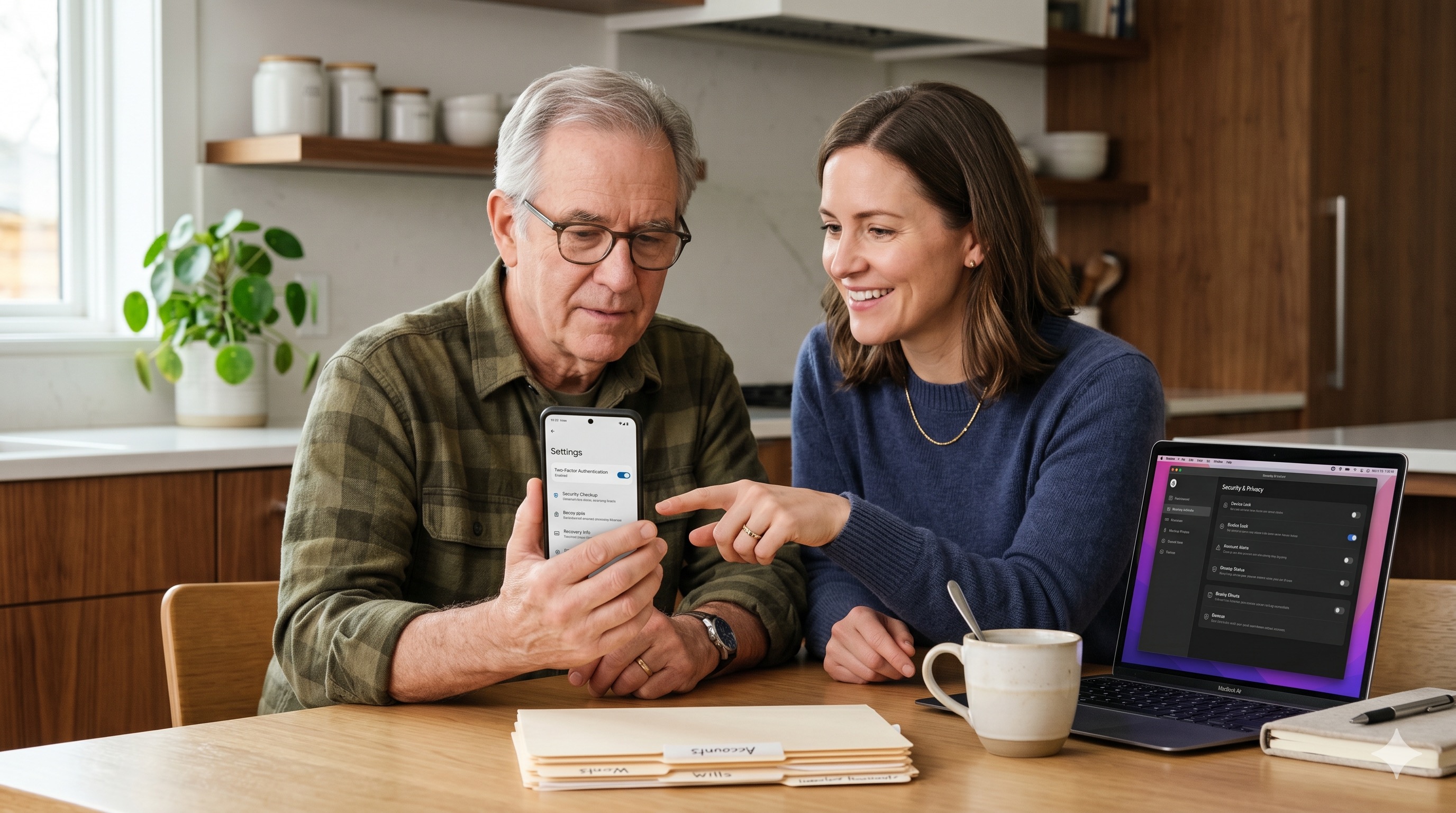
Most online safety does not come from fancy tools.
It comes from a handful of settings you turn on once and then mostly forget about. They quietly protect you in the background, every single day.
The good news is that you do not need to be technical to do this. You just need a short checklist and a calm afternoon.
This guide walks through the most important security settings everyone should use. We will go one at a time, in plain language. Each one is small. Together, they make a big difference.
You do not have to do all ten today. Even turning on the first three will leave you safer than most people online.
Why a Few Settings Matter So Much
Think of your digital life as a house with many doors.
Some doors lead to your email. Some lead to your bank. Some lead to your photos and your phone. Most people leave several of these doors unlocked without realizing it.
Attackers do not usually pick locks. They walk through doors that were left open. A reused password, a phone with no lock screen, an account with no second step to log in. These are the open doors.
The settings below close those doors. None of them require special software. Most live right inside the apps and accounts you already use.
Let's start with the single most powerful one.
1. Turn On Two-Factor Authentication
Two-factor authentication is the most important setting on this list.
It means that logging in takes two things, not one. First your password. Then a second proof that it is really you, like a code from an app or a tap on your phone.
Even if someone steals your password, they still cannot get in without that second step. That one extra layer stops the large majority of account break-ins.
How to turn it on
- Open the security or login settings of an account.
- Look for "two-factor authentication," "2FA," or "two-step verification."
- Choose an authenticator app or a security key if you can. These are stronger than text messages.
- Text-message codes are still far better than nothing. If that is your only option, use it.
Where to turn it on first
Start with the accounts that protect everything else:
- Your primary email
- Your bank and financial apps
- Your password manager
- Your phone carrier and cloud account
Your email is the master key to your online life. Most password resets go through it. Protect it first.
If you want a deeper walkthrough, our guide on two-factor authentication covers the setup step by step.
2. Start Using a Password Manager
A password manager is the second pillar of good security.
Most people reuse the same few passwords because remembering dozens of strong ones is impossible. The problem is that when one site leaks, every account sharing that password is suddenly at risk.
A password manager solves this. It creates long, random, unique passwords for every account, then remembers them for you. You only need to recall one strong master password.
What a good password manager does
- Generates strong, unique passwords automatically.
- Fills them in for you on websites and apps.
- Warns you about reused or weak passwords.
- Syncs safely across your phone and computer.
Two rules that matter most
- Make your master password long and memorable, like a short phrase only you would know.
- Turn on two-factor authentication for the password manager itself.
Your master password is the one key that unlocks all the others. Guard it carefully, and make sure a trusted person could find it if you were ever unable to share it. Our overview of password managers explains how to choose and set one up.
If you are weighing this against an old habit, our post on a password list versus a digital estate plan is a helpful read.
3. Lock Every Device With a Screen Lock
Your phone is a key to almost everything you own online.
Email, banking, photos, messages, and saved passwords all live on it. If it falls into the wrong hands unlocked, every one of those doors swings open.
A screen lock is the simple fix. It takes seconds to set up and protects you instantly.
Set this up on each device
- Use a six-digit PIN, a long passcode, or a strong pattern. Avoid simple ones like 1234 or your birth year.
- Turn on fingerprint or face unlock for convenience, with the PIN as backup.
- Set the screen to lock automatically after a short idle time.
- Turn on the option to wipe or locate the device if it is lost.
Do this on your phone, your tablet, and your computer. A laptop left unlocked at a coffee shop is just as risky as a phone.
For step-by-step help, see our notes on mobile devices and computers.
4. Add and Verify a Recovery Email and Phone
Recovery options are how you get back in when something goes wrong.
If you ever lose your password or your phone, your recovery email and recovery phone number are the lifeline that helps you reclaim your account. If they are missing or out of date, you can get locked out of your own life.
Keep these current
- Add a recovery email you actually check, ideally a different account from the one you are protecting.
- Add a recovery phone number and keep it updated when you change carriers.
- Review these once a year, and again after any big change like a new number or a closed account.
A quick warning. Recovery options are powerful, which means attackers target them too. Never share a recovery code with someone who calls or messages you, even if they sound official. Real companies will not ask for it.
5. Turn On Account Alerts
Account alerts are your early warning system.
They tell you the moment something unusual happens, so you can act fast instead of finding out weeks later. A quiet notification can be the difference between a minor scare and a real loss.
Alerts worth enabling
- New sign-in alerts from your email and important accounts.
- Bank and card alerts for purchases, large transactions, and new payees.
- Password-change and recovery-change notices.
- Login attempts from new devices or new locations.
When an alert arrives that you did not expect, do not panic. Open the app directly, check your recent activity, and change your password if anything looks wrong. Do not click links inside a surprise message. Go to the site or app yourself.
Account alerts pair naturally with two-factor authentication. One stops most break-ins. The other warns you about the rest.
6. Keep Software Updates Automatic
Updates are not just about new features.
Many updates quietly fix security holes that attackers already know about. Skipping them leaves a known door open. Turning on automatic updates closes those doors without you having to think about it.
Turn on automatic updates for
- Your phone and tablet operating system.
- Your computer operating system.
- Your web browser.
- Your most-used apps, especially email, banking, and your password manager.
A device that updates itself is one less thing to remember. Set it and let it run in the background.
While you are in your settings, this is also a good moment to glance at your WiFi network and make sure your router has a strong password and recent updates too.
7. Save Your Backup Codes Somewhere Safe
Backup codes are the quiet safety net behind two-factor authentication.
When you turn on 2FA, most accounts give you a short list of one-time backup codes. These let you log in if you ever lose your phone or your authenticator app. Without them, losing your phone can mean losing the account.
How to handle backup codes
- Save them when you set up two-factor authentication. Do not skip this step.
- Store them somewhere secure, not in a plain note on your desktop or a screenshot in your photos.
- Keep them where a trusted person could reach them in an emergency.
- Regenerate them if you ever think they were exposed.
Backup codes are easy to ignore until the day you desperately need them. A few minutes now saves a stressful lockout later.
This is exactly the kind of detail that belongs in a single, organized place. A tool like Trust Blocks gives you a secure home for 2FA backup codes alongside the rest of your essentials, protected by strong encryption.
8. Review Your Security Questions
Security questions are often the weakest link in account recovery.
The trouble is that many answers are easy to find. Your mother's maiden name, your first pet, the street you grew up on. A determined stranger can sometimes guess or research these.
Make security questions stronger
- Treat answers like passwords. They do not have to be true.
- Use a made-up answer that only you would know, and store it in your password manager.
- Avoid answers that appear on your social media.
- Update old questions on important accounts when you get the chance.
A fake but memorable answer is far safer than the real one. Our note on security questions walks through the idea in more detail.
9. Check App Permissions and Connected Accounts
Over the years, you grant a lot of access without noticing.
A game wants your contacts. A quiz site connects to your email. A shopping app keeps your location on all the time. Each connection is another small door, and most of them you have long forgotten.
A quick permissions cleanup
- Open the privacy or permissions section of your phone settings.
- Turn off location, microphone, camera, and contacts access for apps that do not need it.
- Review the list of apps and websites connected to your email and social accounts.
- Remove anything you no longer recognize or use.
This is also a great time to close accounts you no longer touch. Old, forgotten accounts are a common way information leaks. Our guide on how to clean up old online accounts safely makes this painless.
Fewer open doors means fewer ways in. A short cleanup once or twice a year keeps your digital footprint tidy.
10. Set Up Backups and a Plan for Access
The last setting is the one most people forget.
Security is not only about keeping others out. It is also about making sure you, and the people you trust, can get back in. A lost phone, a forgotten password, or an unexpected emergency should never erase your digital life.
Two things to put in place
- Turn on automatic backups for your phone, computer, and photos to secure cloud storage.
- Make a plan for how a trusted person could reach your most important information if you could not.
That second point matters more than people realize. If something happened to you tomorrow, could your family find your phone passcode, your primary email, and your important instructions? For most households, the honest answer is no.
This is where a digital estate plan helps. With Trust Blocks, you store the five things your family needs first, then designate a Transfer Contact, the trusted person who would receive access when it is truly needed. Your stored secrets are encrypted and protected by your PIN, thanks to a strong, bank-level encrypted design.
If you want to think this through, our digital estate planning checklist is a calm place to start, and our piece on why your family needs a digital access plan explains why it matters.
Frequently Asked Questions
Which security setting should I turn on first?
Start with two-factor authentication on your primary email. Your email is the master key that resets most other accounts, so protecting it first protects everything connected to it.
Are text-message codes good enough for two-factor authentication?
They are far better than no second step at all. If you have the choice, an authenticator app or a security key is stronger, but a text-message code still blocks the large majority of break-in attempts.
Is a password manager really safe to use?
Yes, a reputable password manager is much safer than reusing passwords or keeping them in a note. Protect it with a long master password and two-factor authentication, and store your master password where a trusted person could find it in an emergency.
What happens to my accounts if I lose my phone?
This is exactly why backup codes, a current recovery email, and recent device backups matter. With those in place, you can log in again and restore your information instead of being locked out.
How often should I review these settings?
A quick yearly check is plenty for most people. Review your recovery options, security questions, app permissions, and connected accounts once a year, and again after any big change like a new phone or a new email address.
Key Takeaways
- Two-factor authentication is the single most important security setting. Turn it on for email, banking, and your password manager first.
- A password manager gives every account a strong, unique password so one leak cannot spread.
- Lock every device, keep software updates automatic, and turn on account alerts to catch trouble early.
- Recovery emails, backup codes, and security questions are your safety nets. Keep them current and store them securely.
- Trim old apps, permissions, and accounts so you have fewer open doors.
- Real security includes a plan for access, so you and a trusted Transfer Contact are never locked out.
Your 10-Minute Security Checklist
You do not need a whole weekend. Pick a few of these and start today.
- Turn on two-factor authentication for your primary email.
- Add or update your recovery email and phone number.
- Save your two-factor backup codes somewhere secure.
- Set a strong screen lock on your phone, tablet, and computer.
- Install a password manager and protect it with a strong master password.
- Turn on account alerts for your email and bank.
- Switch on automatic software updates.
- Update weak security questions to private, made-up answers.
- Review app permissions and remove connected apps you no longer use.
- Turn on automatic backups and make a plan for trusted access.
Work down the list at your own pace. Each box you check is one more door safely closed.
When you are ready to organize the information your family would need most, Trust Blocks gives you a secure, encrypted home for it, plus a guided account transfer when the time comes. Security is not about fear. It is about quiet peace of mind, for you and the people you love.

Questions to Ask Your Attorney About Digital Assets
Plain-English questions to ask your attorney about digital assets, online accounts, cloud storage, crypto, and social media so your family can actually get in.

How to Protect Your Email Account From Being Taken Over
Learn how to protect your email account from takeover with strong passwords, two-factor authentication, and smart recovery settings in this plain-English guide.
How to Create a Secure Emergency Access Plan
Create a secure emergency access plan that lets a trusted Transfer Contact help in a crisis using only the access they need, while private accounts stay safe.

How to Inventory Your Online Accounts in One Afternoon
Learn how to inventory online accounts in one afternoon using your email, browser, statements, and app stores to build a clear, findable digital account list.

Conversation Starters for Advisors Discussing Digital Legacy
Use these digital legacy conversation starters to help clients plan passwords, online accounts, family access, documents, and incapacity with confidence.

What Advisors Should Know About Digital Assets in 2026
Help clients close the digital assets in 2026 gap. Learn why online account access is the real asset and how a Transfer Contact protects their family.

How Password Managers Are Becoming Part of Family Planning
See how password managers fit into family planning, from family plans and shared vaults to emergency access, master passwords, and naming a Transfer Contact.
How Trust Blocks Is Making Digital Estate Planning Easier
See how Trust Blocks simplifies digital estate planning, helping families organize accounts, devices, and a trusted Transfer Contact in one secure place.
Join Our Newsletter
Stay updated with the latest tips, news, and
insights from Trust
Blocks